MulmoTerminal
English · 日本語 · 简体中文 · 繁體中文 · 한국어
Run multiple coding-agent sessions in parallel — and see which one needs you.
A browser terminal for parallel AI coding agents: several sessions side by side, each in its own cell, with the one that needs you marked in colour. Claude Code is the default and six more CLIs are first-class — Codex, Antigravity, Grok, Muse, GitHub Copilot CLI and Cursor CLI. Vibe coding with a single agent needs nothing but a shell — this is for when you run several and lose track of which is waiting. Sessions survive a reload (tmux), work isolates in git worktrees, and a phone push reaches you when a turn finishes.
Every cell is a real pty. htop, lazygit, a dev server and Claude Code are the same kind
of object here — which is why the one-session-per-worktree limit applies to agents only, and
a shell or a yarn dev launcher can sit in the same worktree an agent is working in.
Demo
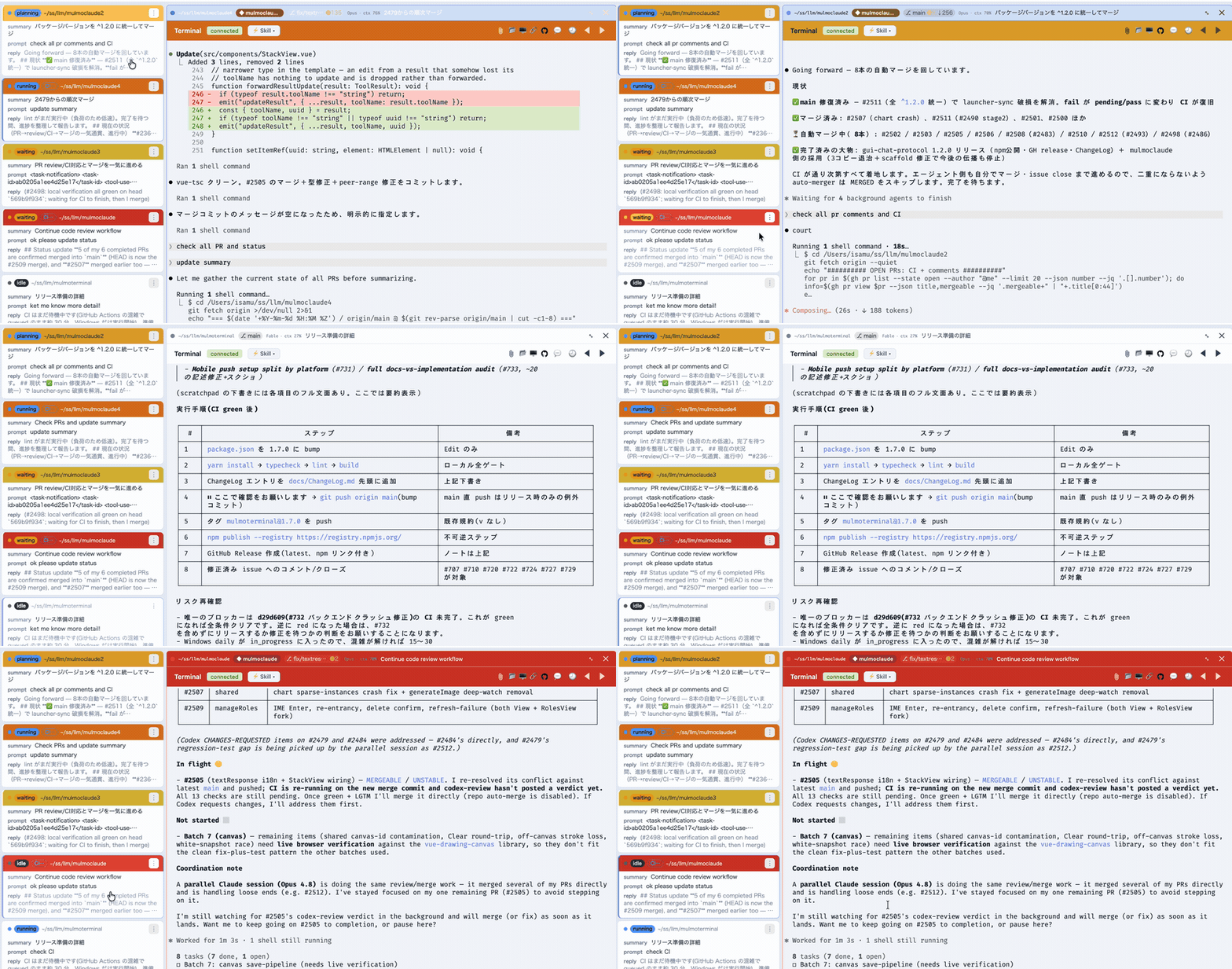
The grid, live — each cell coloured working, done or needs you.
https://github.com/user-attachments/assets/0b8dd582-6c0d-4be3-b0b4-3740ad0bdba6
90 seconds, with sound: one agent, then a grid of them. Zoom into one and the roster still holds what every other session asked, answered and did, so you go to whichever is lit and lose nothing catching up.
Transcript of the narration
When you ran one coding agent, the slowest thing in the room was the agent.
Now that you run five, the slowest thing in the room is probably you.
One of them is always stopped. A permission prompt. A question. Until you notice, it does nothing at all.
MulmoTerminal puts every session on one screen. Blue is working. Green is done. Amber is waiting on you.
You stop hunting. You go where the light is.
The other kind of slow is: what did I even ask this one? The roster keeps one line per session — what you asked, and what came back. Nothing left to remember.
When one is done, you don't go looking for its window. Click its row — the next order goes in right there.
Then you pick the next one from whatever is lit. Click, answer, move on. You never go looking — the roster tells you.
We built MulmoTerminal for exactly that: not to watch agents, but to triage them.
That is the whole install.
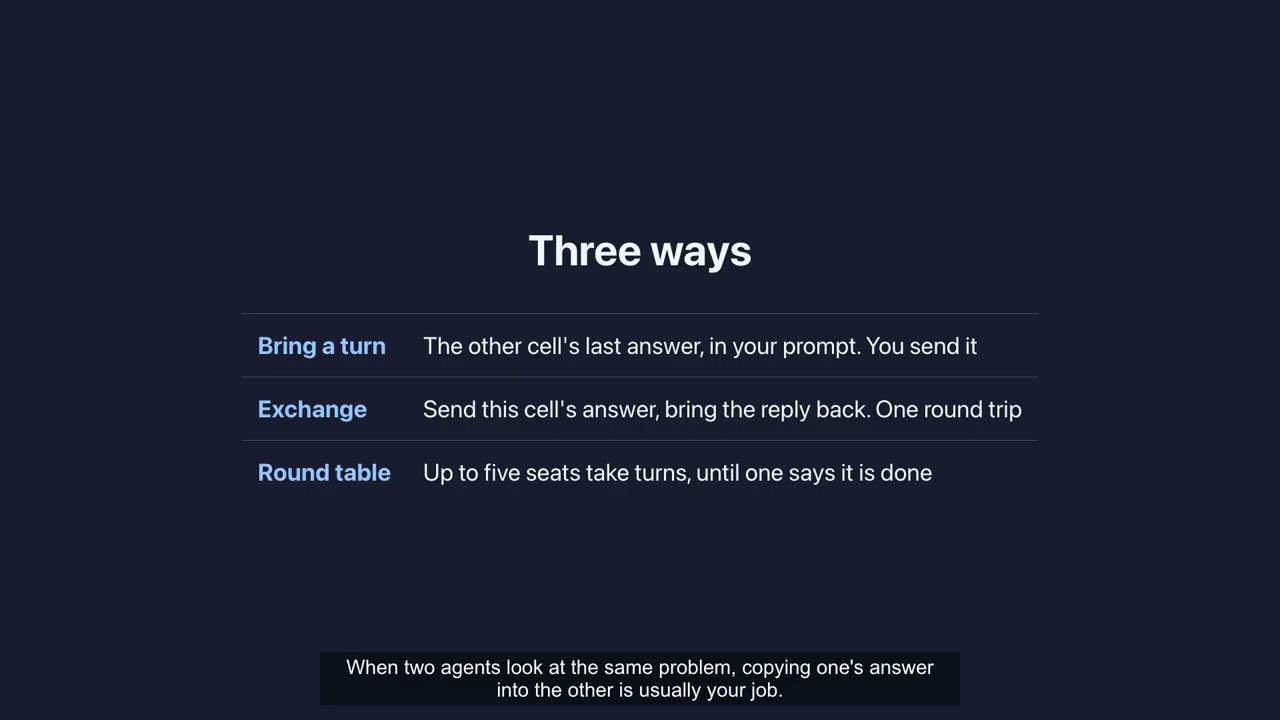
The complete guide, Parts 1-5 — getting started, making it your workspace, agents that hand you a screen, power features (seven agents at once, several subscriptions, shortcuts), and going further into cells that talk to each other, git worktrees and the command palette. Chaptered, so you can jump to the part you need.
MulmoTerminal turns Claude Code — and six other agent CLIs —
into a parallel, observable workspace: many agent sessions at once in a grid, each one
color-coded so you see at a glance which are working, which need you, and which are
done — plus rich GUI output, git worktrees with one-click PRs, cost readouts, and a
ping to your phone when a task finishes. One npx command, no Electron, no config.
npx mulmoterminal@latest # starts on http://localhost:34567 and opens your browser
Requires Node ≥ 22.12, and by default the claude CLI —
on your PATH or named by CLAUDE_BIN, already logged in. Declare a different default agent
(--agent codex, or "defaultAgent" in ~/.mulmoterminal/config.json) and start-up checks that
one instead. npx mulmoterminal@latest init reports what it can't find. On an older Node it stops
before starting the server, with a banner and the upgrade commands for however that Node was
installed.
Why not tmux + iTerm panes?
Running agents in parallel was never the hard part — tmux does that fine. What gets lost is which of them is waiting for you. A pane is opaque: working, finished and blocked-on-a-permission all look the same until you read it. Here every cell reports its state back to one grid — working (blue), done (green), needs you (amber) — with a chime when one goes amber off-screen, and a cockpit roster of one line per session so you can answer one without losing your place in the other four. It runs on tmux when you have it, for persistence across restarts.
Built by receptron — Satoshi Nakajima, software architect for Windows 95 at Microsoft, and Isamu Arimoto; the same two behind GraphAI. More ↓
Why you'll want it
- See every agent at once. A grid of live sessions, each cell color-coded by state — working (blue), blocked / needs a permission (amber), done, unreviewed (blue), idle — with an attention chime and a toolbar tally, so an off-screen agent that's stuck never slips past you. Stop babysitting one terminal; supervise ten. Zoom into one and the cockpit roster keeps everyone else in view — one text row per session with its AI summary, last prompt, latest reply, and the branch's PR phase (draft / CI fail / ready / merged).
- A GUI for your agents, not just a terminal. Beside the terminal, a Canvas panel renders what an agent produces over MCP — documents, forms, charts, generated images, HTML, collection cards — each drawn by its own plugin. The agent doesn't just print text; it hands you an interface.
- Get pulled back from anywhere. A finished — or input-waiting — task sends a Web Push to your phone, and the RemoteHost companion lets you watch sessions and answer with a tap (yes / no / continue) from the phone itself — walk away, get pinged, jump back in.
- Nothing is lost on a restart. With
tmux, every session survives a server crash, restart, ornode --watchreload — a mid-turn agent, a long build, a dev server all keep running and reattach when you come back. A crashed server is restarted for you, so the tab you left open finds it again. - Ship without leaving the grid. Each repo cell shows a git branch chip, isolates work in a one-click git worktree, opens a diff panel, and does commit / push / open PR — so several agents can work the same repo without colliding.
- Know what it's costing. Per-session context %, token, and estimated $ readouts, an activity timeline of tool calls, and AI-summarized cell titles and command-output explanations — so a wall of parallel agents stays legible.
- Make it yours. Per-directory themes, colors, and name badges (
prodin red,stagingin amber), a configurable header (buttons + info chips), custom attention sounds, and Run / Skill / Mulmo menus to launch a project's scripts,.claude/skillsand decks right inside a cell.
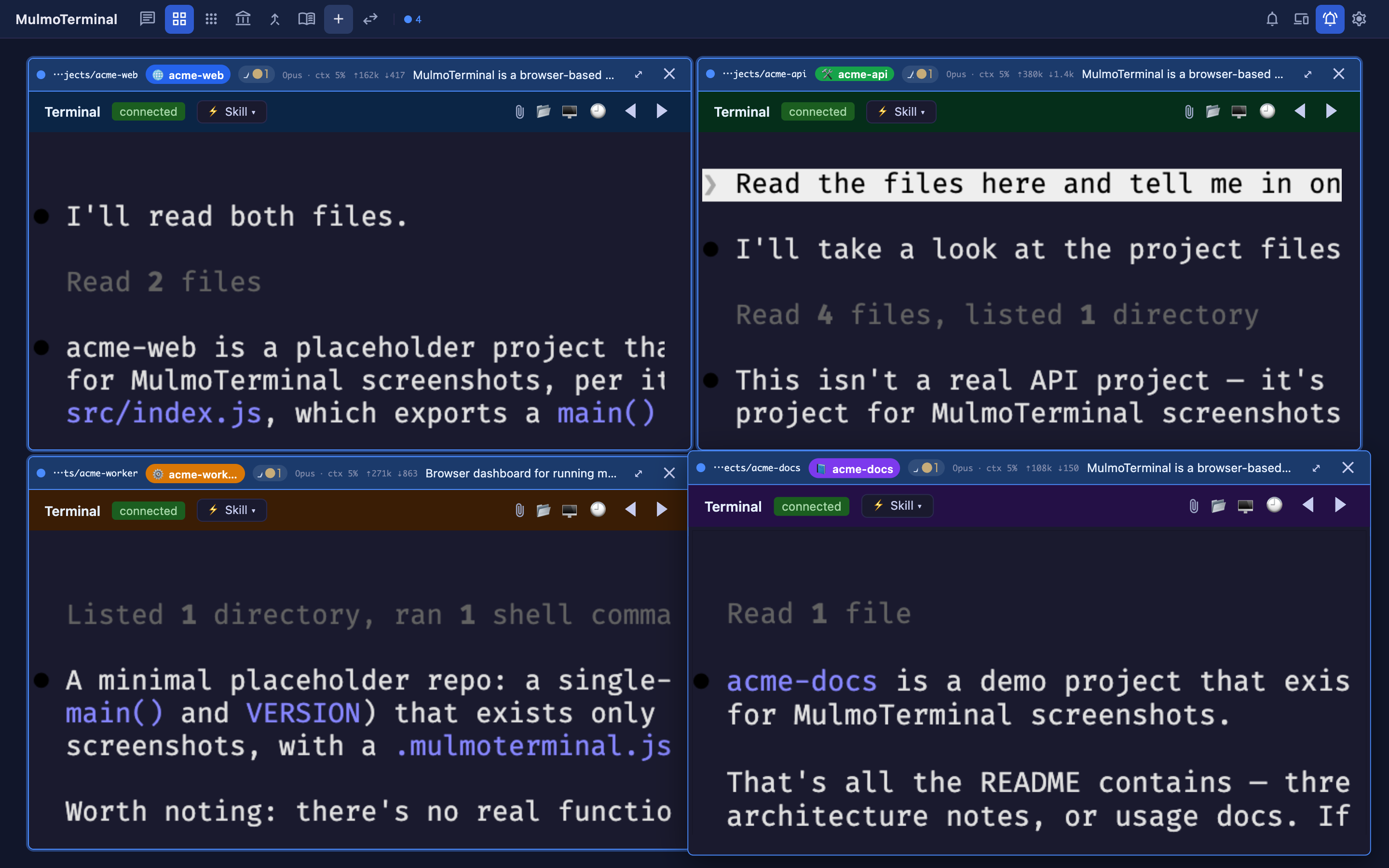
*The grid is a cockpit for parallel agents — here, four live Claude sessions, each in its own color-coded project. Every cell's header carries what you need to triage at a glance: model · context %, token counts (⇡in ⇣out), the git branch / changes chip, and an AI summary of what the agent is doing. A cell's border color signals state — working (blue), done (green), needs-you (amber — e.g. waiting on a permission), idle — with an attention chime so a stuck cell off-screen still pulls you back. Supervise many; only step in where you're called.*
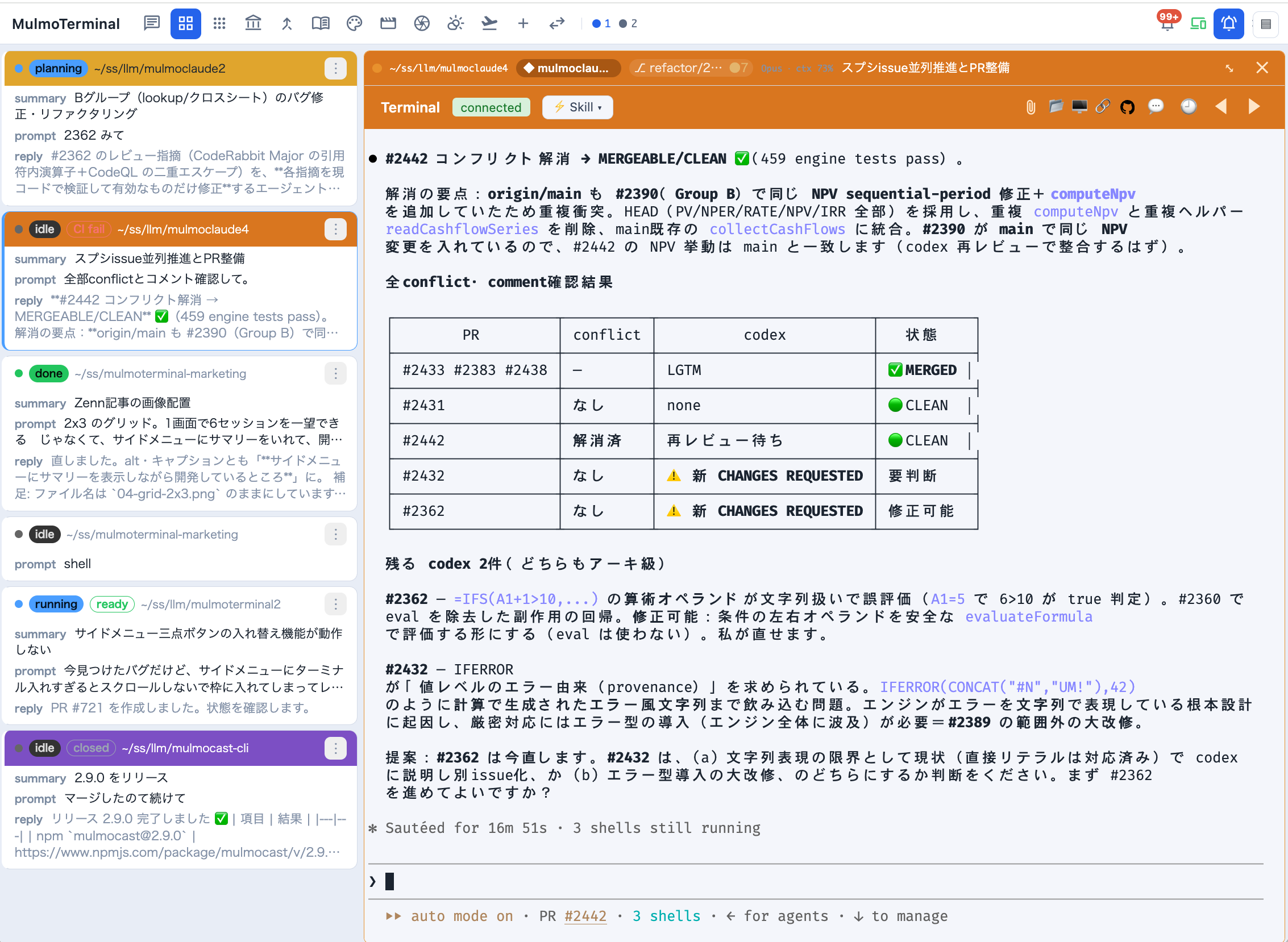
Zoomed in, the cockpit roster replaces thumbnails with information: every session as a text row — directory, AI summary, your last prompt, the agent's latest reply, a status word, and the branch's PR phase badge. A row whose agent is waiting on you rings amber and blinks; one that has merely finished rings green and stays still (Settings → Waiting rows turns the movement off). Click a row to swap the enlarged terminal.
What it is, under the hood
Each session runs as a real PTY on the server (the agent CLI in a pseudo-terminal) and is streamed to an xterm.js terminal in the browser over a WebSocket. The cockpit roster lists every session and reflects, in real time, which are working (the agent is thinking, a spinner), which are waiting on you (a permission prompt or a question — an amber dot; nothing proceeds until you answer) and which are finished with output you haven't seen (a green dot) — driven by the activity each agent reports; claude's hooks are injected per spawn. The horizontal tab bar carries the same two dots.
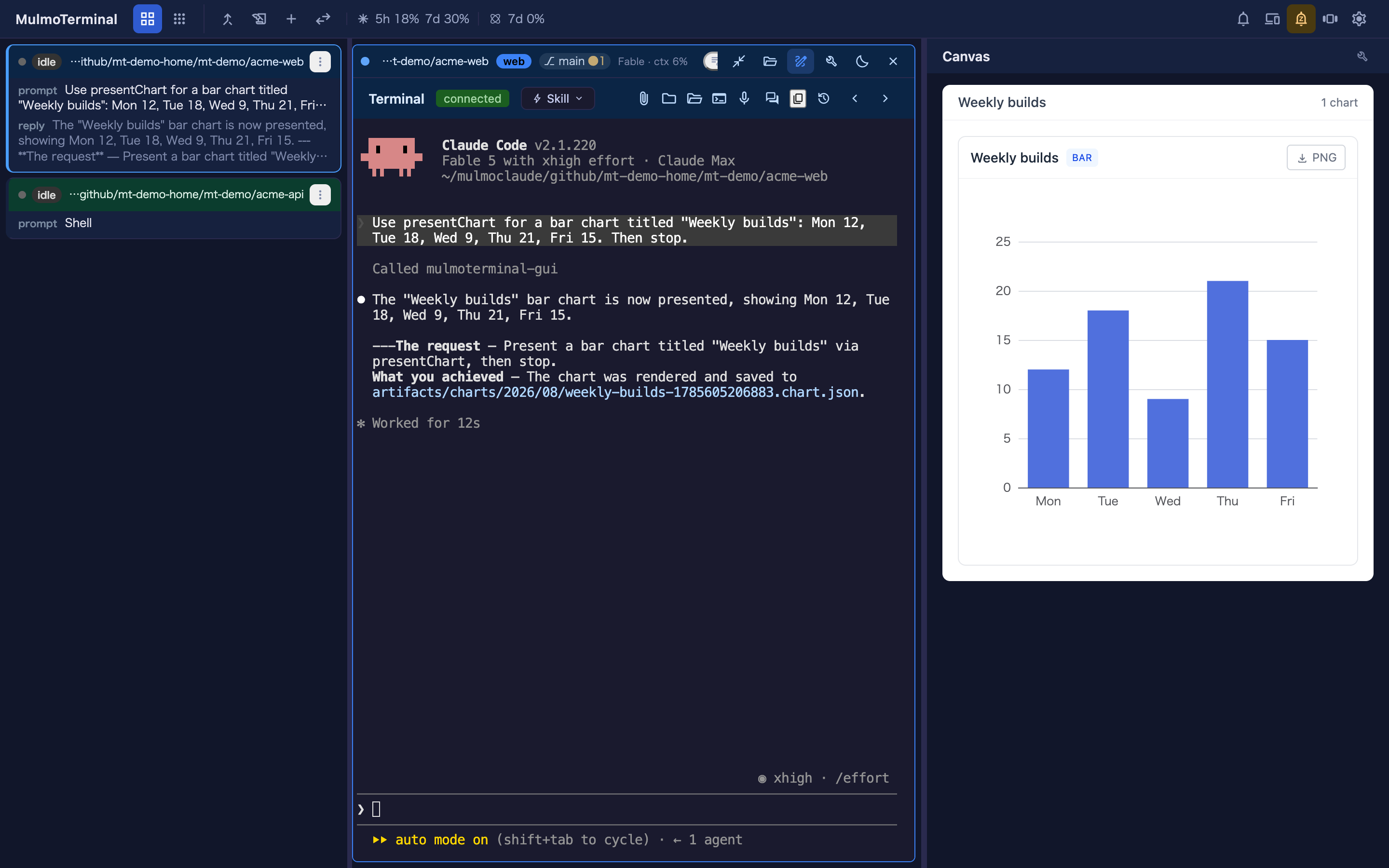
To focus on one agent, zoom its cell: it takes the window, and the GUI panel ("Canvas") opens beside it, where that agent's tool calls render as documents, forms, charts, images, and HTML rather than printed text. The app opens on the grid (/, settling on /terminals), which is the only view; 3.x had a separate single view at /chat and 4.0.0 removed it, so that URL now lands on the grid like any other.
Inserting a file path — like a native terminal, you can put a file's absolute path into the prompt: drag a file onto the terminal, or click the file button in the terminal header, which asks the local server to open the OS file dialog and inserts the chosen path. The path is inserted at the cursor — it is not submitted, so you can review it first.
A drag inserts the file's own path where the browser exposes one via file://
(Firefox/Safari), so editing it afterwards edits the file you dropped. Where the browser
withholds it — Chrome, and every browser when MulmoTerminal is open from another
machine, where a local path would name nothing on the host — the file's bytes are sent
instead, saved to a private per-session directory under the OS temp dir, and that path is
inserted. The session is granted that directory at launch (Claude Code's --add-dir), so the agent reads it without a permission prompt; the copies are removed
when the session ends, and any left by a crash are swept at the next start. Up to 110 MiB per
file — the same ceiling as a phone attachment. A session already running when you upgrade
was launched without that grant, so drops into it still prompt; new sessions don't.
Pasting a screenshot — take a screenshot and paste it straight into the terminal
(Cmd/Ctrl+V). The image is saved to the session's own drop directory — the same place a
dropped file goes, with the same grant, the same 110 MiB ceiling and the same cleanup when the
session ends — and its absolute path is inserted at the cursor, so the agent can read it.
Unlike a drop, this does not need the browser to expose a path — the bytes are on the
clipboard — so it also covers Chrome, where dropping a file cannot insert a path. It works
wherever the browser puts the image on the clipboard as image/png, image/jpeg,
image/gif, or image/webp. Anything else is left to the terminal's own paste handling,
exactly as before — including a paste that carries plain text next to the image, which
copying from a web page usually does, so that pasting text keeps working.
Clicking a file path — the other direction. A path an agent prints becomes a link, and what it opens is chosen by its extension, so each kind arrives as the thing it is rather than as bytes:
| A clicked … | opens as |
|---|---|
.md .markdown |
rendered markdown in a new tab — the same sandboxed …/md HTML the Files preview renders, minus the scripts the preview needs (the one that reports where you are reading, and the one that draws mermaid diagrams — so a mermaid fence stays a code block here). It follows your system light/dark setting, since under the sandbox CSP it can't ask the app which theme is on |
.json |
indented in a new tab (Chrome and Safari otherwise show one long line) |
.csv .tsv |
a table in a new tab, with a sticky header that scrolls inside its own box |
source, config, logs, and .txt — 46 extensions |
the app's own Files view (/files?path=), where CodeMirror highlights it, the tree is right there, and it can be edited |
.html .htm |
the rendered page in a new tab, under the same sandboxed policy as the Files pane's Preview: its scripts run at an opaque origin with no fetch or XHR (so they cannot reach the app or its API), and an image beside it loads by its relative path (a relative stylesheet or script does not). The raw route answers .html as plain text, so opening one there showed its source |
| images, PDF, SVG, video, audio | raw bytes in a new tab, which the browser renders better than an editor would |
everything else — .xlsx, .docx, .zip, a Makefile |
the app's own Files view. A tab cannot display these, so opening one there is not a view — it is a download starting with no warning. The pane names the file and offers Open in OS, which hands it to the application that owns it (Excel for an .xlsx) |
A path outside the session's working directory opens too — absolute, ~/…, or ../ climbing out.
Markdown, JSON, tables and source open against the file's own directory. An HTML page, an image, a PDF,
an SVG, a video or an audio file opens in a new tab through a one-file link: the app asks the server
for it with a same-origin POST, and only that file is served under it — not its directory, and not the
image an HTML page links beside itself. The link lasts until the server restarts (or until many newer links push it out); seeking a video works.
A file that is not there says so in the tab.
A line after the path is followed. src/a.ts:42, src/a.ts:42:7 (gcc, clang, eslint -f unix,
stack traces) and src/a.ts(12,5) (tsc) are one link. In the pane, and in the Files view, the file
opens as text with the caret on that line and column — an HTML page, an SVG or a table included, and a
tab reading in Preview switches to Edit. An image, a PDF, a video or an audio file has no line to go
to and simply opens as itself. A route that renders the file in a new tab (.md, .json,
.csv, .html with no pane to take it) ignores the line. When the pane takes the click, the
keyboard stays in the terminal; the full-screen Files view, with no terminal beside it,
puts it in the editor. (ESLint's default output puts the path on a line of its own, with no line number to follow.)
While a grid cell is enlarged, or a pane is open beside the tiled grid, the Files pane takes the click first — every row above, since the pane is the same editor with a Preview for Markdown, HTML and SVG, shows an image as a picture and a PDF in a frame, and plays a video or an audio file with the browser's own controls (seeking included, whatever the file's size). The file opens beside the terminal that printed it, and the pane opens itself if it was closed. It declines, leaving the routing above untouched, when nothing is enlarged and no pane is beside the tiles, or when the path is not under the directory of the cell the pane belongs to (the pane cannot walk above its root). A file too large to edit as text still offers Open in OS.
Highlighting in the Files view covers the JS/TS family, JSON and Markdown (the modes
cmEditor.ts bundles); other languages open as plain text.
This set is deliberately asymmetric with the set the server serves as viewable text —
.md goes to the rendered viewer rather than the Files view, .txt does the opposite, and
dotfiles are server-only. The 45 extensions both sides agree on live in
common/sourceExtensions.ts, each side adds its own extras, and
test/common/sourceExtensions.spec.ts pins the asymmetry so it isn't "fixed" into symmetry.
Changing this? The routing table is
ROUTE_BY_EXTENSION/IN_APP_EXTENSIONSinsrc/composables/terminalFilePathLinkProvider.ts. Update this section, thedocs/guide/{en,ja}/features.mdrow, and the link table indocs/terminal-notes.mdtogether — all three went stale once already (#834).
What people say after switching
These are experiences reported by users who moved over from an IDE or a split terminal — not benchmarks, and not claims we measured. Your setup may differ.
"It stopped eating my memory"
Keeping several agents apart by opening several IDE windows is expensive: each one brings its own editor, language server, extensions and file watchers. One user reported a 64 GB machine stuttering under that load, and running smoothly after moving over — here the agents are PTYs on a server and the UI is browser tabs.
"I stopped answering the wrong agent"
Six panes of scrolling text look identical. Users have described typing a reply into another agent's terminal, and losing track of what they had asked in the first place. As one put it, the windows all look the same, so switching between them costs time just to work out what you are looking at.
The problem isn't attention — it's that N identical panes means holding N contexts in your head. Colour-coded state, a name badge and a per-directory colour move that onto the screen instead.
"Watching many and reading one stopped being a trade-off"
Splitting a terminal six ways leaves every pane too small to read a long answer without constant scrolling and resizing — one user described exactly that with a 4,000-character reply. So you quietly accept worse reading every time you add an agent.
Grid ↔ enlarge removes that. Watch all of them, then blow one up and read it properly — the cockpit roster keeps the rest in view as text while you do.
"My existing sessions came with me"
Sessions resume as-is — same claude --resume, same transcripts. Point it at a directory you
already work in and your history is there. Nothing to migrate, nothing to redo. One user said this
alone made the switch worth it, having previously lost context to killed sessions.
You don't need ten agents for this to pay off. Users have reported the switch being worth it at one to three parallel sessions. The wins above are about not losing track, not about running more.
📖 Documentation — receptron.github.io/mulmoterminal
- User guide: English — the grid view, everyday workflows, the full feature list, configuration, and mobile push notifications.
- ユーザーガイド: 日本語 — グリッドの使い方・日々のワークフロー・機能一覧・設定・スマホ通知の設定はこちら。
- Updates / アップデート情報: new releases and features are announced on X — in English on @mulmocast, in Japanese on Singularity Society (@SingularitySoci)。 新バージョンや新機能のお知らせは X で。
Install & run
Needs Node ≥ 22.12, plus these CLIs — on your PATH, or named by the matching <AGENT>_BIN:
Never installed any of this before? The guide walks it end to end, macOS and Windows, assuming no command-line experience: Getting started · はじめに — 起動するまで
| Tool | What it gives you | Install | |
|---|---|---|---|
| Required (unless you declare another) | claude |
every Claude session — this app is a cockpit for it. Start-up requires it by default; declare a default agent and it checks that one instead — npx mulmoterminal --agent codex, or "defaultAgent": "codex" in ~/.mulmoterminal/config.json (#2082). CLAUDE_BIN is honoured, so an install off PATH counts |
npm i -g @anthropic-ai/claude-code, then run claude once to log in |
| Required | git |
worktree isolation, each cell's branch / unsaved-dot / diff readout, the PR footer | brew install git · sudo apt install git · sudo dnf install git · Windows: git-scm.com |
| Required | gh |
the cross-repo PRs & Issues view and one-click PR creation — it uses your gh login, so no token is stored |
cli.github.com, then gh auth login |
| Optional | glab |
the same for GitLab projects (#981) — gitlab.com, and a self-hosted instance you declare in gitlabHosts (#1332). Same arrangement: the CLI holds the credentials, this app stores no token |
brew install glab, then glab auth login (self-hosted: glab auth login --hostname gitlab.example.com) |
| Recommended | tmux — the latest release (3.8 as of 2026-10-10); older ones are not supported |
session persistence — terminals survive a server restart | brew install tmux · sudo apt install tmux · sudo dnf install tmux · Windows: winget install -e --id marlocarlo.psmux (3.4.0+, see psmux on Windows) |
| Optional | any other agent CLI | a cell can run Codex, Antigravity (agy), Grok, Muse, GitHub Copilot CLI or Cursor CLI instead of Claude — install only the ones you use, and a missing one simply fails to start that cell. What each can do is the capability matrix; how to install and pick one is the agents guide |
e.g. npm i -g @openai/codex |
| Optional | ffmpeg |
video rendering from the mulmo-script panel (its plugin ships enabled) | brew install ffmpeg · sudo apt install ffmpeg · sudo dnf install ffmpeg |
| Optional | remotion packages |
MulmoCast's remotion beats, where Claude Code writes each scene as a Remotion component (mulmocast 2.13.0). Not a dependency of this app: install them yourself, into your home directory so an npx upgrade does not lose them — init reports whether mulmocast can see them |
Remotion scenes · 日本語 |
| Optional | ollama |
claude-ollama — Claude Code against a fully local model |
ollama.com/download |
| Linux only | a file dialog | the launcher's Choose a folder button and the path menu's Insert a file path, which open an OS dialog on the machine the server runs on. macOS and Windows have one built in; WSL uses the Windows one over interop and needs nothing installed. A Linux desktop needs one of these — without any, they say so and you type the path instead (#1447) | sudo apt install zenity · sudo dnf install zenity · kdialog, qarma and yad also work |
The server starts without any of the non-required rows; you just lose that row's feature,
and the header/panel for it says so. git and gh are marked required because losing them
costs whole views rather than one button. claude is required only until you name a different
default agent — see
Starting without Claude Code
· 日本語. npx mulmoterminal@latest init (below) reports which of
these it can find.
npx mulmoterminal@latest           # start on http://localhost:34567 and open the browser
# or install globally:
npm install -g mulmoterminal
mulmoterminal
Stopping it. Ctrl+C in the terminal that started it — or, if you can no longer find that
terminal, Settings → Quit MulmoTerminal in the browser, or npx mulmoterminal@latest stop
from any terminal (installed globally, just mulmoterminal stop; it stops every server running on
this machine, and --port <port> stops only that one). All three run the same shutdown:
with tmux installed the agent sessions survive and come back under Settings → Sessions that
survived a restart; without it they end with the server.
First-run setup (optional). npx mulmoterminal@latest init checks your environment (Node ≥ 22.12
and every CLI in the table above), says how to update when Node is behind the latest LTS of its line
or Claude Code is behind its stable release, seeds the launcher's directory
presets from the projects in your Claude Code history, and writes ~/.mulmoterminal/config.json.
It's idempotent — re-run it any time to refresh the presets; it overwrites the managed parts
and keeps your other settings. When claude is installed it can hand off to the
/mulmoterminal-config skill for interactive tweaks — it routes to the one that owns what you
want to change. Once the app is up you can also reach them from Settings: each section that a
skill can write ends in a button that starts that skill in a new session, which is how the settings
with no UI (a theme of your own, keymap) get written without hand-editing JSON.
Google account (optional). Link a Google account to enable the chat's google tool and the
phone's google.calendar.* commands: read/create events on any calendar (not just your primary),
list the calendars you've subscribed to, and read the colour palettes. Sign in from
Settings → Google account, or run npx mulmoterminal@latest google login — the CLI is the fallback
for when you're driving MulmoTerminal from another machine, since consent finishes on a loopback
listener and needs a browser on the host. Either way it needs a Desktop OAuth client JSON saved
as ~/.secrets/client_secret_*.json; the refresh token lands in ~/.config/mulmo/google-token.json
and is shared with MulmoClaude, so one link per machine covers both apps.
Local models (optional). The package also ships claude-ollama — a one-command launcher that
runs Claude Code fully locally against an Ollama model (no cloud, no API
key). It starts a large-context Ollama server and launches claude with a minimal system prompt so
small models aren't drowned:
ollama pull qwen3:4b
npx -p mulmoterminal claude-ollama qwen3:4b   # or, if installed globally: claude-ollama qwen3:4b
See Local models with claude-ollama for the details and model notes.
Already linked before the calendar-list / colour features? They need a read scope your existing link doesn't have, so
listCalendars(and, in practice,colors) fail with an insufficient-scope 403 until you re-authorize: Settings → Google account → Unlink, then sign in again (or re-rungoogle login). Reading/creating events on your primary calendar keeps working without re-linking.
A global install isn't auto-updated, so on startup MulmoTerminal checks npm and
prints a one-line notice when a newer version is available — and the web toolbar shows a
clickable update badge with the exact command for your install (npm i -g mulmoterminal,
or git pull origin main && yarn install && yarn build for a clone, then restart — a pull alone
updates the server's code but leaves the dependencies and the browser's build as they were). The server repeats that check every few hours, so a release that
ships while it is running still reaches the badge; the startup console notice is printed once
and is not repeated. Disable with MULMOTERMINAL_NO_UPDATE_CHECK=1 (or NO_UPDATE_NOTIFIER=1).
Options: --cwd <dir> (working directory — relative paths allowed; defaults to the
directory you run the command from), --port <n> (default 34567; the
PORT environment variable is used when the flag is absent), --no-open,
--version, --help.
npx mulmoterminal@latest --cwd ./my-project # work in a specific directory
The published package ships the server (run via tsx) plus the pre-built web UI;
npx mulmoterminal@latest checks for the claude CLI — or for whichever agent you set as the
default — picks a free port, starts the server, and opens the browser. For local development from a clone, see
Running.
Won't start with ERR_MODULE_NOT_FOUND? If a first npx run was interrupted, a half-unpacked ~/.npm/_npx/<hash> cache can remain and a later run fails at startup — a corrupted npx cache, not a bug in the published package.
The launcher detects it and prints the exact, OS-appropriate removal command; run that, then npx mulmoterminal@latest again.
Something looks wrong? Type
/mulmoterminal-bug-reportin any MulmoTerminal session. The bundled skill hears the symptom out, checks your real config, schema and version to see whether the behaviour is configuration or by design, searches the existing issues — and only helps you file one if none of that explains it, with the environment collected and secrets masked. Getting you unstuck is the goal; an issue is what is left when the first three steps fail.
Have a question instead? Press the help icon in the toolbar (next to the gear), or type
/mulmoterminal-helpin any session. The bundled skill answers questions about MulmoTerminal — what it can do, how a feature or a part of the screen works, how to set something up, what is new in your version and in the latest one — from the shipped guide, changelog and source, and names where each fact was checked. It changes nothing.
Contents
- Architecture
- Why a PTY?
- Agents
- Session persistence (tmux)
- Tech stack
- Configuration
- Running
- Scripts (Run menu)
- Skills (Skill menu)
- Decks (Mulmo menu)
- Files view (browse & edit)
- Git worktrees & pull requests
- Cost & token usage
- Wiki, Collections & the GUI panel
- More features
- Server API specification
- Session model
- Session lifecycle
- Claude hook injection
- Closing summary
- Session discovery & titles
- Project structure
- Testing
- Contributing
Architecture
┌──────────────────────────────────────┐         ┌─────────────────────────────────────────────┐
│ Browser (Vue 3 + xterm.js)            │         │ Server (Express + Node)                       │
│                                       │         │                                               │
│  App.vue ──────subscribe("sessions")──┼──SIO───►│  socket.io  /ws/pubsub   ── publish ──┐       │
│      ▲  refetch on any push (favicon) │         │                                       │       │
│      └──── GET /api/sessions ─────────┼──HTTP──►│  Express   /api/sessions              │       │
│                                       │         │            /api/hook  ◄──curl── hooks │       │
│  Terminal.vue ── ws JSON msgs ────────┼──WS────►│  ws        /ws  ──► node-pty ─► `claude`──hooks┘
│      (input / resize / output)        │         │                     (one PTY per session)     │
└──────────────────────────────────────┘         └─────────────────────────────────────────────┘
- Terminal I/O flows over a raw WebSocket (
/ws), one PTY per session. - Session list is fetched over HTTP (
/api/sessions) — byApp.vuefor the tab favicon, and by an empty cell's launch form (?cwd=) for its resume rows. - Live activity is pushed over a Socket.IO pub/sub channel (
/ws/pubsub); the server learns of activity from hooks that POST to/api/hook. - Other terminals run on their own raw WebSockets — one per agent (
/ws/codex,/ws/antigravity,/ws/grok,/ws/muse,/ws/copilot,/ws/cursor), persistent launch commands on/ws/launch, and one-off script commands (yarn dev, tests, …) on/ws/run. Three agents reach/api/hook— Claude directly, Copilot and Cursor through a translation of their own vocabularies; Codex is read from its rollout instead, and agy, grok and muse report no activity at all. Which agent does what is the matrix indocs/agent-capability-matrix.md; see also Scripts (Run menu). - In dev (
yarn dev) the Vite dev server runs on its own port (CLIENT_PORT, default6856) and proxies/ws(a prefix covering/ws/codex,/ws/launch, and/ws/run),/ws/pubsub,/api,/artifacts, and/htmlfileto the backend (PORT, default34567) — so you open the Vite port (e.g.http://localhost:6856). In production the backend serves the built client fromdist/onPORT, and you open that.
Why a PTY?
Claude Code's interactive mode renders its UI with Ink
(a React-based TUI framework), which requires a real TTY to be attached. A
plain child_process.spawn() provides no TTY, so interactive Claude won't start
(it stays silent). node-pty allocates a
real pseudo-terminal at the OS level, so from Claude's point of view it's
running in an ordinary terminal — full TUI rendering, cursor movement, colors,
and tool-approval prompts all work. We don't use -p/headless mode or the Agent
SDK; we drive the real interactive CLI and relay its TTY over the WebSocket.
macOS note: node-pty's bundled
spawn-helperbinary ships without the execute bit (mode 644), which causes aposix_spawnp failederror. Thepostinstallscript (server/fix-pty-perms.js) fixes it to 755 automatically.
Agents: Claude, Codex, Antigravity, Grok, Muse, Copilot & Cursor
MulmoTerminal drives interactive coding-agent CLIs, not just Claude. An
AgentAdapter seam abstracts the per-agent bits (which binary to spawn, how it resumes)
so the PTY, grid, persistence, and GUI-panel plumbing stay shared. Seven adapters ship
today — Claude Code (the default), Codex, Antigravity (agy), Grok, Muse,
GitHub Copilot CLI, and Cursor CLI.
Which capabilities each one actually has — status dots, notifications, resume, cost, GUI tools —
is the matrix in docs/agent-capability-matrix.md.
Claude — spawned as
claude(override withCLAUDE_BIN). The server passes--session-id <uuid>, so it knows the live session's id even before its transcript file exists, and injects activity hooks per spawn (see Claude hook injection) plus the closing summary instruction. The whole GUI MCP (--mcp-config, on one all-tools URL) goes only to a session that is not a grid cell, or to a grid cell whose cwd IS the workspace —claimFullGuiMcpinserver/session/registry.ts, which is what gives a workspace cell the tools the single view had before 4.0.0 removed it. That equivalence is about what the session carries: a workspace cell is still a grid cell in every other respect. A cell in a project directory attaches none of ours, so its GUI tools come from whichever Canvas switches are registered for it. Either way, Claude Code loads your own MCP servers normally — the directory's local scope, any.mcp.jsonup the tree, your global ones and your claude.ai connectors. It did not always:--strict-mcp-configused to ride along with--mcp-config, which hid all of that from the very sessions meant to be the most capable (#1338, #1385).Codex — spawned as
codex(override withCODEX_BIN;CODEX_MODELsets--model). Codex runs on its own WebSocket (/ws/codex) and its sessions appear in the cockpit roster next to Claude's. Because Codex only mints its rollout id after the first turn, the server watches~/.codex/sessions/**/rollout-*.jsonl(home overridable viaCODEX_HOME) and maps the new rollout to the session — attributed only when it's unambiguous, never by "newest wins". That mapping is appended to~/.mulmoterminal/codex-rollouts.jsonl, so a conversation is still resumable after the server restarts — without it a session whose tmux is also gone came back as a fresh codex. Resume reattaches a live PTY, adopts a surviving tmux session, or cold-resumes the rollout id.Antigravity — spawned as
agy(override withANTIGRAVITY_BIN;ANTIGRAVITY_MODELsets--model). Antigravity runs on its own WebSocket (/ws/antigravity). Like Codex it mints its own conversation id, so the server watches~/.gemini/antigravity-cli/brain/(home overridable viaANTIGRAVITY_HOME) for the directory the new conversation creates — attributed only when unambiguous — and cold-resumes it with--conversation <id>. That mapping is appended to~/.mulmoterminal/antigravity-conversations.jsonl, so a conversation is still resumable after the server restarts — the same log Codex keeps, in the same format.Its GUI tools work differently — in the workspace too, because
agytakes no MCP flag: it reads its servers from.agents/mcp_config.jsonin the working directory. So it never gets the workspace's "every tool automatically"; register what it needs with the Canvas switches, wherever it runs (see MCP server ids). MulmoTerminal writes that file from the directory's Canvas switches — the same switches Claude's cells read — so one switch serves every agent, and rewrites it whenever a switch flips or an agy session starts. Servers in it that MulmoTerminal did not write are left alone, the file is removed once no group is on, and it is kept out of yourgit statusthrough.git/info/exclude— a local switch on a local machine, so it never reaches a diff or your team. The entry runsserver/mcp/bridge.mjs, a stdio-to-HTTP shim onto the same in-process GUI MCP server the other agents call. The session id is never written into that file — it is per directory and shared by every session running there — and reaches the bridge through the agy process's own environment instead.Grok — spawned as
grok(override withGROK_BIN;GROK_MODELsets--model), on its own WebSocket (/ws/grok). It resumes the way Claude does rather than the way Codex and Antigravity do:grok --session-id <uuid>starts a conversation under an id MulmoTerminal minted, so there is no watcher, no attribution guess, and no mapping log — the id the browser holds is grok's own. A reconnect passes--resume <id>instead, but only once a conversation by that name exists on disk: grok writes one under~/.grok/sessions/<url-encoded cwd>/<id>/(home overridable viaGROK_HOME) after the first turn, and re-using a--session-idthat already exists is a hard error, which is why the two flags are never sent together.Its GUI tools work like Antigravity's — in the workspace too and for the same reason:
groktakes no MCP flag, so it never gets the workspace's "every tool automatically" either, and MulmoTerminal registers the bridge in.grok/config.toml(grok's project-scope config) from the directory's Canvas switches, wherever it runs (see MCP server ids). That file is TOML and yours, so — unlike agy's JSON — MulmoTerminal never rewrites it directly: it drivesgrok mcp add -s project/grok mcp remove -s project, and only for the server ids it wrote itself. Nothing else in the file is touched, a directory already in the right state runs no command at all, and the file is added to.git/info/excludeonly when MulmoTerminal created it. As with agy, the session id is never written into that file — it reaches the bridge through the grok process's own environment.Muse — spawned as
muse(override withMUSE_BIN;MUSE_MODELsets--model), on its own WebSocket (/ws/muse). It is codex-shaped on the id axis — it mints its own session id as a row insession-index.db, so a fresh spawn is watched for the new row and a reconnect resumes it withmuse resume <id>. That resume also carries--workspace <dir>: the flag is what registers the policy-gated workspace tools, so a resumed session without it comes back with the conversation and without the tools. Sessions run under--yolo, because an unattended grid cell needs an approval-free mode — it has no way to answer a modal prompt in a TUI nobody is watching. (Codex is the exception that proves it: it is passed no such mode, so it can still block on its own approval prompt.) Its GUI tools reach it a third way, through an installed plugin rather than a flag or a directory file; see MCP server ids.GitHub Copilot CLI — spawned as
copilot(override withCOPILOT_BIN;COPILOT_MODELsets--model), on its own WebSocket (/ws/copilot). It is the simplest adapter here, because one flag does what the others split in two:--session-id <uuid>sets the UUID for a NEW session and resumes that same session later, so MulmoTerminal mints the id and there is no watcher, no attribution guess and no mapping log. Sessions land in~/.copilot/session-state/<id>/with a machine-wide index at~/.copilot/session-store.db(home overridable viaCOPILOT_HOME), which is what/api/copilot/sessionsqueries by working directory.Its status dots, attention sound and tool history come from copilot's own hooks, the way Claude's do — but registered once per machine, not per spawn: MulmoTerminal writes
<COPILOT_HOME>/hooks/mulmoterminal.json, and every hook payload carries thesessionIdthat is already ours. Copilot has no--settingsequivalent, and its documented per-directory hook files do not load. Three things follow. A copilot session you start in a plain terminal also posts to MulmoTerminal (its id is unknown, so the server ignores it — and the hook is written to fail silently and quickly). Two MulmoTerminal instances on different ports share that one file, so the last one to start wins and the other's copilot cells run without status until their next spawn — an accepted limitation, logged when it happens, not something that can be fixed without either refusing a second instance or adding a machine-wide daemon. And the file is removed when the server exits, with a stale one left by a crash reaped at the next startup: it names a bare127.0.0.1:<port>, so a leftover would point copilot's prompts at whatever took that port next.--allow-all-toolsis passed for the reason every agent here needs one: a grid cell cannot answer a modal prompt. The whole GUI MCP reaches a workspace cell through--additional-mcp-config, the same per-spawn shape Claude's--mcp-confighas; a project cell gets the groups its directory registered. What it does not do yet: report being blocked on input (permissionRequestfires on every tool call, not only when someone is asked), token/context badges, or$cost — seedocs/agent-capability-matrix.mdfor what each would take.Cursor CLI — spawned as
cursor-agent(override withCURSOR_BIN;CURSOR_MODELsets--model), on its own WebSocket (/ws/cursor). Identity works exactly as copilot's does: one flag,--resume <uuid>, both starts a chat under an id MulmoTerminal invented and returns to it later, so there is no watcher, no attribution guess and no mapping log.--trustis passed as well as--force, because a directory Cursor has not seen before otherwise blocks on a Workspace Trust prompt nobody is watching. Chats land under~/.cursor/projects/<slug>/agent-transcripts/<id>/, where<slug>is a truncated-and-hashed form of the directory that cannot be reconstructed — so/api/cursor/sessionsreads each project directory's own.workspace-trustedto learn which directory it stands for, and omits any that does not say.Its status dots and tool history come from cursor's own hooks, registered once per machine in
~/.cursor/hooks.json— cursor has no--settingsequivalent, and--plugin-dir, which would have been one, does not deliver hooks to the interactive TUI. That file is a FIXED path, so a user who already keeps their own hooks there is left alone (with a line in the log) rather than merged into. It is removed when the server exits, and a stale one left by a crash is rewritten at the next startup. Two MulmoTerminal instances share it with the same accepted limitation copilot's has.Cursor is the only agent besides Claude that drives both status halves —
beforeSubmitPromptstarts the turn andstopends it. What it does not do: report being blocked on input (every event that fires before an approval prompt also fires when nothing is asked), the GUI MCP (cursor reads MCP from a file and no writer ships yet), token/context badges (thestoppayload carries the counts, unread), or$cost — seedocs/agent-capability-matrix.mdfor what each would take.
Choosing an agent. Each grid cell's launch form carries the Agent Picker — a
Claude / Codex / Antigravity / Grok / Muse / Copilot / Cursor / Shell toggle — and the Collections
browser a Claude / Codex / Antigravity / Grok / Muse / Copilot / Cursor one (your choice is
remembered).
Shell is not an agent: it runs your OS default shell ($SHELL, or /bin/sh) in the
chosen directory, with nothing to install and nothing to configure. It starts a launcher
cell, so it has no model, no MCP registration, and no worktree — those rows disappear
while it is picked.
Other models.
Claude Code can run against any Anthropic-compatible backend (OpenRouter, Moonshot, a
LiteLLM gateway). Backends are listed in ~/.mulmoterminal/config.json under providers,
and their keys are read from the server's environment — never from a file the app
serves. A directory sets its default in .mulmoterminal.json (provider / model), and
each grid cell's launch form has a MODEL select that overrides it for one session,
listing ~27 curated models with the measured pass rate of a real tool-using task beside
each. A provider whose token can't be resolved refuses to start rather than falling
back to Anthropic. Full walkthrough — setup, the measured model list, adding your own models, troubleshooting:
Using another model via OpenRouter.
Skills for Codex. Codex has no /<slug> slash commands, so on session setup
MulmoTerminal mirrors the workspace's .claude/skills into ~/.codex/skills (each
mirrored directory carries a .mt-mirror marker so a re-sync overwrites what MulmoTerminal
owns and never clobbers Codex's own skills), and rewrites a collection's /<slug> … seed
into a plain Use the "<slug>" skill. instruction. The same skills Claude uses then show
up for Codex, loaded by description.
Running the server on another machine
The server can live on a Linux box, a VPS or a container while your browser stays on your laptop:
start it there over SSH (npx mulmoterminal), and reach it through an SSH tunnel
(ssh -N -L 34567:127.0.0.1:34567 you@server, then open http://localhost:34567). Started over
SSH, the launcher opens no browser on the server and prints that command. It still listens on
loopback only — nothing is opened to the network. Logging the agents in on the server, Docker, and
the few actions that act on the server's machine: Run the server on another machine.
Session persistence (tmux)
If tmux is installed, MulmoTerminal runs each Claude session and launcher inside
a tmux session, so a server crash or restart doesn't kill your terminals — the
processes keep running and reattach when the server comes back (like screen/tmux).
A long build, a dev server, or a mid-turn Claude session all survive node --watch
reloads and crashes. It uses its own tmux server (-L mulmoterminal) and config, so
it never touches your personal tmux sessions or keybindings. A server started with HOME
pointed somewhere else gets a tmux server of its own (mulmoterminal-<hash>), so it never
sweeps or reconfigures the sessions of the one running on your real home.
And the server comes back by itself. npx mulmoterminal supervises the server it
started: a crash is restarted with a short backoff, so the browser tab reconnects to the
sessions tmux kept rather than to a dead port — which matters most from a phone, where
there is no terminal to start it again in. A stop you asked for is still a stop:
mulmoterminal stop, the Stop button, Ctrl+C and kill all end it. A server that never
managed to bind is not restarted either — the reason it printed is the answer, and
retrying would bury it. Repeated failures give up rather than respawn forever.
Not on Windows, where it is not yet possible: Node has no real signals there, so every way of stopping the server terminates it outright, and the launcher cannot tell that from a crash. Windows keeps the old behaviour — the launcher ends when its server does.
No tmux? No problem — terminals fall back to plain (non-persistent) PTYs, exactly as before. An explicit close (a cell's ✕) ends the tmux session; a machine reboot does not survive (tmux itself is gone). Command-cell scripts are ephemeral and not persisted.
Scrolling back can put a pane in tmux's copy-mode. A program that does not handle the mouse
itself — a shell, or Codex's normal screen — scrolls through tmux: a wheel-up or a drag enters
copy-mode, where keys move through the history instead of reaching the program. While a pane is
in it, the cell shows a "Viewing history" banner with a Back to input button; q works
too. Leaving sends nothing to the program, and keys typed right after the button are not lost.
Installing tmux (optional):
brew install tmux            # macOS (Homebrew)
sudo apt install tmux        # Debian / Ubuntu
sudo dnf install tmux        # Fedora
Use the latest tmux release (3.8 as of 2026-10-10); older versions are not supported. Some
things MulmoTerminal asks tmux for, such as restoring bracketed paste after a reload, need 3.7 or
newer. A distribution's package is often older, so check tmux -V and take a newer build from
tmux releases when it is.
Nothing else is required: MulmoTerminal detects tmux on PATH at startup and uses it
automatically when present.
psmux on Windows
Windows has no native tmux. psmux, a native Windows tmux, gives the same persistence — sessions survive a server restart, a crash and Quit, and come back on the next start:
winget install -e --id marlocarlo.psmux   # installs itself as tmux.exe
tmux -V                              # second line: psmux 3.4.0 or newer
Then restart MulmoTerminal; the server log says [tmux] running on psmux <version>. Use psmux
3.4.0 or newer: older releases drop an auto-run prompt's Enter into the paste (the prompt is
typed but never sent) and lose a double Esc, and the server warns at startup when it finds one.
What MulmoTerminal does differently behind psmux, and only there:
- starts each psmux client with
PSMUX_VT_INPUT=1, so a paste keeps its markers and the Enter after it is not taken into it.PSMUX_VT_INPUT=0in the server's environment turns this off; - counts emoji two cells wide in the browser (Unicode 11), as Claude Code and psmux do — otherwise each emoji shifts the rest of its row by one column;
- keeps Volta's
_VOLTA_TOOL_RECURSIONout of psmux's environment, sonodein a cell resolves through Volta's shim again; - turns psmux's warm pool off (
set -g warm off, psmux 3.3.1+), in new servers and in the ones already running. Every cell starts with-e, which never claims a spare shell, so the spares only held memory and were restarted on every resize.
psmux imitates tmux 3.4, so the few things that need tmux 3.7+ (such as restoring bracketed paste after a reload) are not available on it. A Windows restart still ends every session, as a reboot does with tmux. Without psmux nothing changes: sessions use the non-persistent fallback, or run the server under WSL.
Tech stack
| Layer | Technology |
|---|---|
| Frontend | Vue 3 (<script setup> + TypeScript), Vue Router, Vite, xterm.js (@xterm/*), CodeMirror 6, socket.io-client |
| Backend | Node (ESM, TypeScript run via tsx), Express 5, ws (terminal WebSocket), node-pty, socket.io, @modelcontextprotocol/sdk (in-process GUI MCP) |
| Plugins | GUI-protocol Vue plugins (@mulmoclaude/*, @mulmochat-plugin/*): markdown, form, image, chart, HTML, collection, accounting, mulmoscript (MulmoCast video/slides), google |
| Tests | Vitest + @vue/test-utils + jsdom |
Requires Node ≥ 22.12 (uses node --env-file-if-exists) and, by default, the claude CLI —
found on PATH or named by CLAUDE_BIN. Declaring a different default agent (--agent codex, or
"defaultAgent" in ~/.mulmoterminal/config.json) makes start-up check that agent instead (#2082):
see Starting without Claude Code.
Configuration
The server is configured entirely through environment variables, optionally
loaded from a .env file. npx mulmoterminal@latest reads the .env in the
directory you run it from; the npm scripts read the one in the repo root. The
.env is optional — every variable below has a default, so the server runs
without one.
A variable already set in your shell wins over the same name in .env, so
adding a file never overrides what you exported. The server's environment is
inherited by every terminal it starts, so anything in .env is also visible to
the claude / codex sessions themselves.
| Variable | Default | Description |
|---|---|---|
PORT |
34567 |
Backend HTTP/WebSocket port (prod: the URL you open). |
CLIENT_PORT |
6856 |
Vite dev-server port (dev only: the URL you open with yarn dev). |
CLAUDE_BIN |
claude |
The Claude Code binary to spawn. On Windows a bare name is resolved on PATH before it reaches the PTY layer (which matches file names exactly): to the .exe when there is one, otherwise to the .cmd shim an npm-global install leaves, run through cmd.exe. |
CLAUDE_CWD |
current dir | Working directory each claude PTY runs in; determines which project's sessions are listed. Via npx mulmoterminal@latest it defaults to the directory you ran the command from (override with --cwd <dir>, relative allowed); when the server is run directly it falls back to ~/mulmoclaude. A value read from .env must be an absolute path (~ is not expanded). Running in one of your own project directories does not litter it — see the note under the table. |
CLAUDE_PERMISSION_MODE |
auto |
Permission mode passed to each claude spawn. A Claude Code whose --help does not list the mode is not started: the cell says so, and for auto says to update Claude Code. |
MT_TITLE_SOURCE |
transcript |
Where the cell header's AI title comes from. transcript reads the title Claude Code writes into its own transcript — no extra process. headless restores the old behaviour of summarizing the recent turns with claude -p, which costs a model call but follows a session whose topic drifts (Claude's own title is written once and never revised). |
MT_TITLE_MODEL |
haiku |
Model used for the cell header's AI title. Only read when MT_TITLE_SOURCE=headless. Accepts a --model alias or a full model id. |
CODEX_BIN |
codex |
The Codex CLI binary to spawn. |
CODEX_MODEL |
codex default | Model passed to Codex as --model (unset = Codex's own default). |
CODEX_HOME |
~/.codex |
Codex home — where its session rollouts and MulmoTerminal-mirrored skills live. |
ANTIGRAVITY_BIN |
agy |
The Antigravity CLI binary to spawn. |
ANTIGRAVITY_MODEL |
agy default | Model passed to Antigravity as --model (unset = agy's own default). |
ANTIGRAVITY_HOME |
~/.gemini/antigravity-cli |
Antigravity home directory containing session brain storage. |
GROK_BIN |
grok |
The Grok CLI binary to spawn. |
GROK_MODEL |
grok default | Model passed to Grok as --model (unset = grok's own default). |
GROK_HOME |
~/.grok |
Grok home directory containing its per-directory session store. |
MUSE_BIN |
muse |
The Muse CLI binary to spawn. |
MUSE_MODEL |
muse default | Model passed to Muse as --model (unset = muse's own default). |
MUSE_HOME |
~/.local/share/muse |
Muse home directory containing its session index and logs. |
COPILOT_BIN |
copilot |
The GitHub Copilot CLI binary to spawn. |
COPILOT_MODEL |
copilot default | Model passed to Copilot as --model (unset = copilot's own default). |
COPILOT_HOME |
~/.copilot |
Copilot's config directory. MulmoTerminal registers its status hooks in <COPILOT_HOME>/hooks/mulmoterminal.json and reads the session list from <COPILOT_HOME>/session-store.db. |
CURSOR_BIN |
cursor-agent |
The Cursor CLI binary to spawn. |
CURSOR_MODEL |
cursor default | Model passed to Cursor as --model (unset = cursor's own default). Cursor's model names are account-specific and a wrong one is a hard exit — check cursor-agent --list-models first. |
MULMOTERMINAL_HOME |
~/.mulmoterminal |
Root for managed git worktrees. |
CLAUDE_CONFIG_DIR |
~/.claude |
Claude Code's own config directory. MulmoTerminal reads Claude's transcripts (projects/), prompt history (history.jsonl) and user skills (skills/) from it, and .claude.json from inside it (unset: ~/.claude.json), which is how the per-project GUI MCP registration is checked (server/session/project-dir.ts). Set it in the environment MulmoTerminal starts from, so it matches the one Claude runs under. |
MULMOCLAUDE_WORKSPACE_PATH |
~/mulmoclaude |
Where the managed MulmoClaude workspace lives. MulmoTerminal seeds presets/helps only into this directory, so launching in an arbitrary project never writes them there (server/backends/workspaceSetup.ts), and it is what decides where MulmoTerminal's own runtime state goes — see the note under the table. Set it to the same value MulmoClaude uses. |
MULMOTERMINAL_NO_SKILL_INSTALL |
unset | Set to any value to skip installing the bundled skills (mulmoterminal-config and the -dirs / -theme / -header / -keys / -model / -notify / -bug-report / -decisions / -help / -shared-app / -data-analysis / -video-edit family) into Claude's skills root (~/.claude/skills/, and $CLAUDE_CONFIG_DIR/skills/ as well when that is set) and the Codex skills root on startup. |
GEMINI_IMAGE_MODEL |
gemini-3.1-flash-image-preview |
Model used for image generation (needs GEMINI_API_KEY). The default is a preview model Google schedules for retirement around mid-2026, so pin a stable one here (e.g. gemini-2.5-flash-image) rather than waiting for a code change. |
WAIT_REAP_GRACE_MS |
1800000 |
How long a waiting background session is kept before it's auto-reaped (0 or negative = never). |
Where MulmoTerminal's own runtime state goes. The launcher defaults the workspace to the
directory you ran it from, which is usually one of your own projects — so the state MulmoTerminal
keeps for itself does not go there. The scheduler's execution state and logs
(config/scheduler/state.json, data/scheduler/logs/) and the notifier's
(data/notifier/) live under ~/.mulmoterminal/workspaces/<workspace-key>/ instead, one
directory per workspace — <workspace-key> is the workspace's path folded to a safe name plus a
short digest of it, so two workspaces never share one. What you made stays in the workspace either way: collections, feeds, and the
scheduled tasks you write in config/scheduler/tasks.json.
The one exception is the managed workspace named by MULMOCLAUDE_WORKSPACE_PATH
(~/mulmoclaude by default), where that state stays in the workspace — MulmoClaude reads the
same files there, and splitting them would give the two apps different answers.
If you ran an older version in a project directory, what it left behind is inert and nothing
recreates it — but delete the generated files, not the whole directory:
config/scheduler/state.json, data/scheduler/, data/notifier/. Leave
config/scheduler/tasks.json alone; that one is yours, it is still read from the workspace, and
deleting it deletes your scheduled tasks.
The update-check opt-outs (MULMOTERMINAL_NO_UPDATE_CHECK, NO_UPDATE_NOTIFIER) are
covered in Install & run.
Example .env (gitignored):
CLAUDE_CWD=/Users/you/my-project
UI settings (~/.mulmoterminal/config.json)
The Settings modal (the gear button) persists per-user UI choices to ~/.mulmoterminal/config.json
(read/written via GET/POST /api/config):
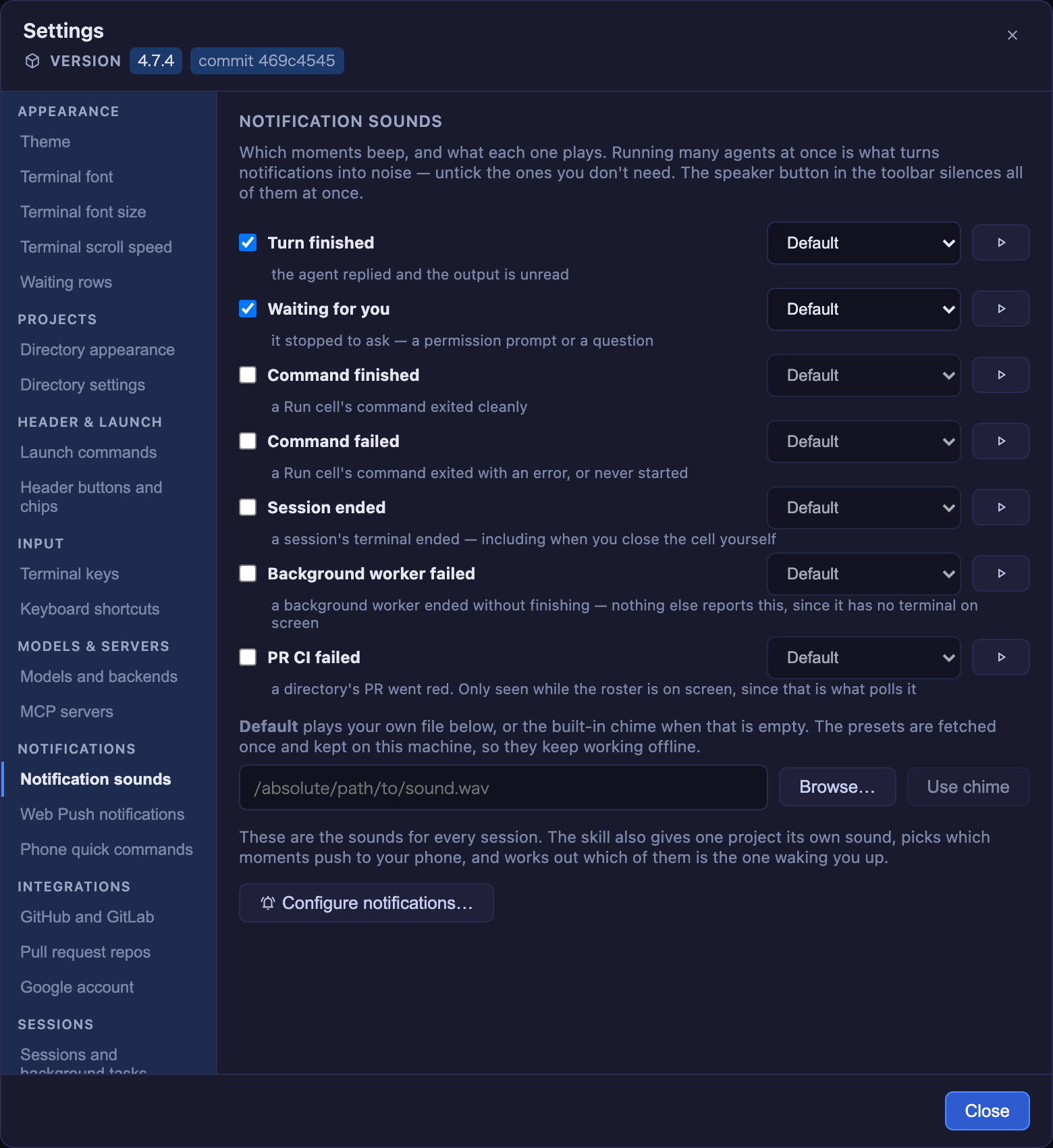
Open it from the gear button in the toolbar. The sidebar groups the sections — Appearance, Projects, Header & launch, Input, Models & servers, Notifications, Integrations, Sessions, Help — and one is on screen at a time; on a phone the sidebar becomes a picker above the section. The interface is available in English, 日本語, 简体中文, 繁體中文 and 한국어: it follows your browser's language unless you pick one under Language (per browser, like the theme). Translated so far: this modal, the grid's status words, and every button's hover tip and screen-reader label; the rest of the app's words are still English. Under the title, a Version row shows what is running: the version from the shipped package.json, plus a commit <sha> chip on a git checkout — there the version is only whatever was last released, so the commit is what identifies the build. When something newer exists, the row is followed by the header badge's update notice, command included. Pick a theme, set the terminal font size, font and scroll speed (and whether sending returns to the latest output), set a custom attention sound, list the repos the cross-repo PRs & Issues view should aggregate, add launch commands for grid cells, register your own MCP servers, and turn on the switches for what this app writes on your behalf — issue work comments, the PR clone footer, the closing summary, the decision digest, the dev worklog — no need to hand-edit the config file. Three settings stay with their skill because a form would be the wrong tool for them (keymap, themes, buttons/chips); Settings shows what each is doing now and launches that skill. Backends (providers), custom agents and accounts are added and removed in Models and backends. Note that theme, font size, scroll speed and the return-to-latest switch are stored per browser (they're display preferences, so a phone and a desktop keep their own); the rest live in ~/.mulmoterminal/config.json and are shared by every client. Help links to the guide and has a button that opens a terminal where an agent answers questions about MulmoTerminal from the shipped docs and source — the same help desk as the toolbar's help icon.
| Field | Meaning |
|---|---|
cwdPresets |
Quick-pick directories offered when launching a terminal. |
soundFile |
Absolute path to a custom attention sound, the fallback for every kind. Empty/unset uses the built-in synthesized chime. |
soundKinds |
Which moments beep — see Notification sounds. Defaults to ["finished","waiting"]; the other kinds are opt-in. |
sounds |
Per-kind sound: { "waiting": "preset:coin" }. A preset:<id> reference or an absolute path; a kind with no entry falls back to soundFile. |
prRepos |
owner/repo entries whose open PRs/issues the cross-repo PRs & Issues view aggregates, using whichever CLI the host needs — your own gh or glab login, so no token is stored here. An entry may name its host — gitlab.com/group/project is read with glab, and work can be started on it, commented on and turned into a merge request. A host that is neither shows a row saying so. |
gitlabHosts |
Hosts that run a self-hosted GitLab, e.g. ["gitlab.example.com"]. Nothing in a URL says which forge a host runs, so declaring it is what lets prRepos entries on that host be read with glab — everything gitlab.com can do, it can do. Needs glab auth login --hostname <host>. Editable in Settings → GitHub and GitLab; either way it takes effect on the next server start. |
repoDirs |
{ "owner/repo": "/abs/path" } — which local clone work on a repo starts in, when you keep several side by side. Only the choice is stored; which clones exist is re-derived from cwdPresets on every read, and an entry that no longer names a clone of that repo is ignored. |
launchers |
{ label, command } entries offered in a grid cell's launcher besides the agents — any interactive command. A plain shell needs no entry: the Agent Picker's Shell option opens $SHELL unconfigured. |
customAgents |
{ id, label, agent, command } entries offered in the Agent Picker — your own way of starting Claude Code (ollama launch claude --model … --, a wrapper script). Unlike a launcher, Claude Code's own argv is appended to command, so the cell is a real session: resume, cost, context, GUI tools. agent says which agent's arguments to append and is required ("claude" is the only value today); command must stop taking arguments where Claude Code's begin — hence the trailing -- above. Up to 8. |
accounts |
Beta (setup guide). { id, label, agent, home } entries — a second login for Claude Code (agent: "claude") or Codex ("codex"), kept in its own config directory home (absolute or ~/…). Picked per cell in the launch form's ACCOUNT select (the cell's header then names it); a session started on one runs with CLAUDE_CONFIG_DIR / CODEX_HOME set to it, and is bound to that account for good: resume, cost, titles and history are read from there, session lists show every account's rows, and the toolbar shows each account's 5h / 7d usage beside the default's. An account pointed at ~/.claude / ~/.codex itself is treated as the default login: no variable, no gauge of its own. A cell with no account gets no such variable added (whatever MulmoTerminal's own environment carries is inherited as before), so configuring none changes nothing. Up to 8. |
tokenRotation |
Beta (setup guide). { enabled, includeDefaultLogin, tokens: [{ id, label, email?, keychain | file }] } — several Claude subscriptions behind the one ~/.claude. Each new plain Claude process starts on the subscription whose 7-day window has the most room per hour until its reset; a session whose subscription is at 98% moves to another at the end of its turn, and one that hits its limit moves at once — the cell reconnects and resumes the same conversation. A token is named by where it is kept (a keychain item, or a chmod 600 file), never written here. Provider, custom-agent and account cells are never rotated. Up to 8. |
quickCommands |
{ label, text, agents? } phrases the phone offers as chips on a session's terminal view. Tapping one puts text in the input box; it is not sent until you press send. agents scopes a chip to session kinds — any of SESSION_AGENTS ("claude", "codex", "antigravity", "grok", "muse", "copilot", "cursor", "shell"); omit it to offer the chip everywhere. Empty by default. |
userMcpServers |
{ id, url } HTTP MCP servers merged into the --mcp-config of the Claude sessions that carry the full GUI MCP (codex is handed the GUI server alone, codexGuiMcpServers) — a cell whose working directory is the workspace, and a session the server starts itself (the phone, a scheduled task) unless it asks for a grid cell's shape, as an issue's seed session does (issueSpawnOptions). A cell in a project directory does not get this merge; the MCP config the user wrote is read either way. Takes effect on the next session. |
buttons |
Header action buttons — see Header buttons. Omit to keep the defaults; set to replace them. |
chips |
Header info chips (dir / git / work / diff / ctx / usage / status / tools / env, or custom text). env shows what this working tree was reserved by worktreeEnv (:3010, clickable) and draws nothing where none is declared. Omit to keep the default set; [] hides all built-ins. work shows which PR / issue the cell is on (#977 → #966) and clears itself when the PR merges — see the Configuration guide. |
pushEnabled |
true to send a Web Push to your registered devices. Off by default; only sends while the RemoteHost channel is connected (see below). The master switch — pushKinds picks which moments. |
pushKinds |
Which moments push: "finished" (a turn ended, ✅) and/or "waiting" (the agent stopped to ask — a permission prompt or a question, ❓, once per prompt). Omit to keep both; [] for none. A kind added in a later version stays off until you tick it. |
worklogEnabled |
true to run the built-in dev worklog batch (see below). Off by default (each run spawns an LLM session, so it costs tokens). Editable in Settings → Sessions and background tasks. |
worklogIntervalHours |
Worklog cadence in hours (default 6, clamped to 1–168). A stepper in the same Settings section covers the range. |
feedRefreshEnabled |
false stops the hourly collection/feed refresh (one scheduled task per root — the workspace and every saved project directory). On by default; only an explicit false turns it off, so an existing config keeps the behaviour it has. Saved from Settings (or any POST /api/config), it applies at once — the running scheduler rebuilds its built-in tasks; a hand-edit applies after Settings → Reload config file (or a restart). Feeds still refresh on demand. Checkbox in Settings → Sessions. |
calendarSyncEnabled |
false stops the hourly Google Calendar sync (pulls changed events into collections that declare a calendar). Same default and the same restart rule as feedRefreshEnabled; calendar collections still sync on demand. Checkbox in the same Settings section. With both off and worklogEnabled off, no built-in task is registered. Your own tasks in config/scheduler/tasks.json are unaffected — these switches do not touch them, and an enabled one still registers and still runs the tick loop. Only when there is no enabled user task either does the scheduler stop writing its state file and run logs. |
tmuxPrefix |
The prefix key of the dedicated tmux server: "none" (default — every key reaches the agent, so Ctrl+B is "one character left" again), "C-b" (tmux's own default) or another control key such as "C-]". Applied to a running tmux server on save. See the Configuration guide. Settings → Terminal keys has a dropdown. |
terminalSubmit |
Which bytes Claude reads as submit vs newline: "cr" (default — Enter submits, Shift+Enter makes a newline) or "esc-cr" (for a Claude Code rebound the other way). Applies to the keyboard and the phone remote-view submit, for Claude sessions only (shell/codex keep plain Enter). See the Configuration guide. Settings → Terminal keys offers both, worded as behaviour. |
copyOnSelect |
true puts a mouse selection on the clipboard the moment it settles, with no key pressed (the PuTTY / iTerm2 behaviour). Off by default — it changes the clipboard when you may only have meant to highlight something. There is a checkbox in Settings → Terminal keys, applied at once; a hand edit of the file needs a server restart, then a tab reload (the server reads this file once at startup, and the browser reads the value from it on load). Composes with the copy keymap action rather than replacing it. Over plain http:// the browser gives a page no clipboard access, so a fallback asks xterm to copy instead; see the Configuration guide. |
questionPaneEnabled |
true offers a Claude session's AskUserQuestion choices as buttons in a pane beside the enlarged terminal. The terminal's own dialog stays and the pane drives it — a click presses the arrow keys and Enter in the real dialog, so either end can answer and the first one wins. Claude sessions only (the choices arrive on Claude Code's hooks). A single question can also be answered in your own words — a text box under the buttons writes into the dialog's own Type something row; several questions at once, or a multi-select one, get buttons only, and Chat about this stays in the terminal. Off by default — it lets a pane type into your terminal. Checkbox in Settings → Terminal keys, applied at once (the server re-reads the file per question). See the Feature reference. |
decisionDigest |
Keep a Markdown digest of the decisions this project's sessions asked for, refreshed at startup and every few hours, so an agent can read what has already been decided before asking something similar. Written to ~/.mulmoterminal/decisions/<project>.md (never into your repository) and served to agents by the bundled mulmoterminal-decisions skill. Off by default — it is a vision-stage idea, and it writes a file that would otherwise not exist. The digest holds dated facts, never inferred rules. Settings → Sessions and background tasks has the switch. |
issueWorkComments |
Let a cell comment on the issue it is working on: one comment, posted when the work starts and then edited as the PR opens and merges (closing the issue if the forge has not already), each milestone stamped in UTC. The comment names the working directory it happened in — the folder name only, never the path — so a reader can tell which clone, and two terminals do not start the same issue twice. It says it came from MulmoTerminal. CI is deliberately not reported: it is on the PR already, and it flaps. Off by default; it writes to the forge, often on somebody else's issue. Needs the matching CLI logged in — gh for GitHub, glab for gitlab.com and any host declared in gitlabHosts. See the Configuration guide. Editable in Settings → GitHub and GitLab. |
prWorkdirFooter |
Ends a PR body with work in <clone> — the directory name of the clone the work happened in, so a PR says which of several side-by-side checkouts produced it. Applies to both paths that open PRs here: ⧉ Open PR appends it to the PR it creates, and every Claude session is told to end the bodies it writes with the same line (the name is resolved by the server, so a session inside a managed worktree still names the main checkout). On by default; set false to opt out, from Settings → GitHub and GitLab or the file — read per PR and per session spawn, so no restart is needed, and a second MulmoTerminal beside this one sees the change too. Appending is idempotent: an existing PR never gets a second copy. |
appendSystemPrompt |
Whether a spawned Claude session is asked to end a reply with a closing summary — what was asked, what was achieved, what was not (see Closing summary). On by default; set false to opt out, and a directory's .mulmoterminal.json outranks this. Settings → Sessions and background tasks has the switch. Read per spawn, so no restart is needed, though a session already running keeps what it was launched with. true / false only. |
autoDirIcon |
Whether a project that sets no icon shows the favicon its repository already ships (public/favicon.svg, apple-touch-icon.png, a web manifest — first hit wins, ordered by how the image survives at 14px). On by default; Settings → Directory appearance has the switch. A single project opts out with "icon": false in its own .mulmoterminal.json, which this does not override. A key that was written and got it wrong shows nothing rather than falling back — a broken setting has to look broken. true / false only. |
cockpitLines |
{ summary, prompt, response } — how many lines each cockpit-roster row shows before it clamps (default 2 / 2 / 3, each clamped to 1–20). Raising them trades how many sessions fit on screen for reading a long one in place. Three steppers in Settings → Waiting rows. |
usageGauge |
Whether the grid header draws the 5h / 7d usage gauge for Claude and Codex. Claude is measured by a hidden claude making one API call, which counts against those windows. On by default; false hides the gauge and measures nothing. Settings → Grid header read-outs has the switch. |
usageProbeIntervalMinutes |
How many minutes Claude's reading may age before the gauge measures it again. Default 10, whole minutes from 2 to 60. Settings → Grid header read-outs has the stepper. |
showLoadAverage |
Whether the grid header draws this machine's load average beside the 5h / 7d usage windows, as a percentage of its cores (load 334% = a 20-core machine with 66.8 runnable processes). On by default; amber at 100%, red at 200%, hover for the raw 1 / 5 / 15-minute figures. Settings → Grid header read-outs has the switch. A host that keeps no load average (Windows) shows nothing rather than 0%, whatever this says. true / false only. |
remoteServer |
Experimental. The server runs on another machine than your browser (an SSH tunnel — guide): the actions that would act on the server's screen (the file dialog, the file manager, the OS app) are hidden or say why, and a dropped file is always uploaded. Off unless true; Settings → Sessions and background tasks has the box (or set it in the server's config). |
fontFamily |
The terminal font every session renders in — a CSS font-family stack, e.g. "'Cica', 'MS Gothic', monospace". Set it in Settings → Terminal font, applied at once; editing the file instead needs a restart (this config is read once at startup). Unset uses the built-in stack (JetBrains Mono / Fira Code / Menlo / Consolas, then CJK faces for Japanese, Korean and Chinese). Unlike the per-browser font size, this is one value for the whole host — it names fonts, and which fonts exist is a property of the machine. A directory can override it. See the Configuration guide. |
Every MulmoTerminal on the machine shares this one file, so an older build could save over a key a newer one wrote. It doesn't: a top-level key this version doesn't recognise is written back untouched, which is what makes running two versions side by side — or downgrading for a while — safe. A mistyped key survives on the same rule, which is deliberate: a line you can still see is easier to debug than one that silently vanished. See the Configuration guide.
Header buttons
Each terminal header shows configurable action buttons. Omitting buttons (globally or per-dir)
keeps the built-in starter set: this branch's PR (git repos, only when a PR exists). Inserting a
file path, revealing the folder, the in-app file explorer, a new terminal here and the GitHub links
are items in the path menu (click the directory path on the terminal header). Setting buttons (at either level) replaces the whole default
set with your list (it is not merged on top), so listing your own — even a shorter one — is how
you drop, reorder, or swap them.
A button has an id, label, and a run of "shell" (run a command), "input" (send text to the
agent), "open", or "action" (act on the cell itself, named like the keymap actions so one operation is
a button, a key and a command-palette entry — action: "terminal-restart" ends the agent and starts
it again in the same cell on the same conversation, which is how an MCP / config / plugin change
takes effect; it costs a resume and asks nothing first. "terminal-new-here" opens the launch panel
on the cell's directory, and "pane-files" / "pane-prompts" / … / "terminal-timeline" /
"terminal-talk" / "terminal-park" / "terminal-copy-code" / "terminal-insert-path" / "terminal-reveal" /
"terminal-voice" / "terminal-diff" / "terminal-note" do what the cell's menus and buttons do, and "screen-*" / "settings-open" /
"sound-toggle" / "confetti" / "view-toggle" / "order-*" / "page-next" / "page-prev" do what the toolbar and the page tabs do; the old name "restart" still works). An open button targets one of url / reveal (OS file manager) / files
(in-app explorer) / view (a built-in overlay) / terminal (a dir → a new cell running $SHELL,
opened next to the current one) / pr: true (open the current branch's PR — the button is hidden when
there's no open PR) / pickFile: true (OS file dialog → insert the path).
An entry with items instead of run is a folder: one icon that opens a menu of the buttons
inside it (one level only — a folder cannot hold a folder).
${dir}, ${branch}, ${repo}, … substitute live context, and when (e.g. "isGitRepo") gates
visibility. The /mulmoterminal-header skill writes a valid config interactively; per-dir buttons
merge over the global ones by id, while chips replace the global list wholesale.
Notification sounds
Six moments can beep, each with its own sound and its own on/off switch. Running many agents at once is what turns notifications into noise, so only the first two are on by default — the rest are opt-in from Settings.
| Kind | When | Default |
|---|---|---|
finished |
the turn ended and the output is unread | on |
waiting |
it stopped to ask — a permission prompt or a question | on |
command-done |
a Run cell's command exited 0 | off |
command-failed |
a Run cell's command exited non-zero, or never started | off |
session-exited |
a session's terminal ended — including when you close the cell yourself | off |
pr-ci-failed |
a directory's PR went red. Only seen while the roster is on screen, since that is what polls the phase | off |
A Run cell is the one-shot cell a script.json entry or a run:"shell" header button
opens — not a shell launcher cell. A launcher runs an interactive shell that stays alive, so
nothing marks where one command inside it ended; only the one-shot cell reports an exit code.
finished and waiting reach the phone too (pushKinds); the other four are seen only in
the browser — a Run PTY never enters the session registry, and a PR phase is something the
page polls — so Web Push cannot raise them.
What each one plays. The default chime is generated with the Web Audio API — no audio file is bundled, so the npm package stays light and has no media-licensing concerns. Beyond it there are two options:
- Presets — seven sounds hosted in the ownplate
repo (MIT), referenced as
preset:<id>:chimecoincheepdoorgongmagicmeow. The first play downloads one into~/.mulmoterminal/sounds/; every later play reads that file, so a preset keeps working offline. A failed download is not remembered as one — you get the chime that time and the next play retries. That holds on both sides: the server caches no failure, and it answers 503 (not 404) for a preset it could not fetch, because the browser remembers a 404 for the life of the page and only retries a 5xx. - Your own file — an absolute path, per kind in
soundsor as the all-kindsoundFile.
Resolution per kind, nearest first: the session directory's sounds[kind], its sound, your
sounds[kind], your soundFile, then the chime. The server streams whichever applies at
GET /api/sound?kind= / GET /api/dir-sound?cwd=&kind=, and the client falls back to the
chime if it's missing or not audio.
Web Push on task finish. Enable pushEnabled in Settings to have the server send a
push (title = the project dir, body = the last prompt) to your registered devices each
time a background task finishes — the same signal as the attention chime, but for the
panes you're not watching. Delivery is handled by the separate mulmoserver sendPush
Cloud Function; MulmoTerminal only makes the call, and only while the RemoteHost
channel is connected (its Google sign-in supplies the notification auth). With RemoteHost
disconnected, or with no device registered, the toggle is a no-op.
Dev worklog (cross-clone). Set worklogEnabled: true in
~/.mulmoterminal/config.json (or switch it on in Settings, which applies at once; after a hand-edit use Settings → Reload config file)
to register a built-in scheduled task. Every worklogIntervalHours (default 6) it spawns
a Claude session that reviews the work you did across all your saved working dirs
(cwdPresets) since it last ran, and writes it up as a short manager-style report.
It runs as a background worker: behind the Background filter, never bold, and it takes
no grid cell, so an hourly task cannot fill the grid. Web Push still fires for it —
being quiet means out of the way, not unreachable, and it runs while you are away.
Multiple clones/worktrees of the same repo (e.g. myapp, myapp2) are merged into one
per-repository section, each covering what problem was addressed, what got solved, what's
still in progress, and — mined from the transcripts — decisions that were only discussed
and not built. The window is since the last run (tracked in
config/scheduler/worklog-state.json), not a fixed 6 h, so a missed/slept run doesn't drop
work. It reads and reconciles progress against vision.md / milestones.md (creating
empty ones if absent) so a long-running goal isn't forgotten.
A run due while the server was off is not lost: built-in scheduled tasks record their
runs in config/scheduler/state.json and catch up at startup, each by its own missed-run
policy. The worklog's is run-once — a single run covering everything since the last, so
several missed windows don't become several batches summarising the same period. Whether
they ran, and when they run next, is in GET /api/scheduler/tasks; the history is in
GET /api/scheduler/logs (?taskId=&since=&limit=, newest first) and on disk under
data/scheduler/logs/.
Output lands in the wiki: one weekly page per ISO week
(data/wiki/pages/dev-log-YYYY-www.md — filenames are lowercase, or the wiki can't open
them), each tagged worklog. To browse them, open the 作業ログ 一覧 hub page
(worklog), which links every week, or click the #worklog tag in the wiki index.
Off by default because each run costs tokens — watch the cost readout and tune the cadence.
Run it on a single "hub" instance; running it in several instances sharing one workspace
double-fires it. The batch treats everything it reads (transcripts, git, wiki) as untrusted
data and only writes the worklog / hub / vision / milestones pages.
Per-directory settings (<project>/.mulmoterminal.json)
Drop a .mulmoterminal.json in a project directory to give terminals opened in
that directory their own look and sound. It applies per terminal (per grid cell) —
the rest of the app keeps your chosen theme — and a directory's theme overrides your
manual theme pick for that terminal only. Every field is optional; a missing or
malformed file is ignored.
{
  "name": "PROD · payments",            // badge shown on this directory's terminals
  "icon": "docs/logo.png",              // image on this dir's cells (path here, URL, or data:); omit to use the repo's favicon
  "badgeColor": "#cf222e",              // badge color (hex #rrggbb)
  "headerColor": "#190a23",             // cell header background (hex #rrggbb)
  "headerTextColor": "#ffffff",         // cell header text color while idle (hex #rrggbb)
  "headerStatusColors": {               // what the header shows once a status takes the background over
    "working": "#6d28d9",               //   just the background — the text colour is derived from it
    "done": { "background": "#166534" },
    "blocked": { "background": "#7c2d12", "text": "#ffe8a3" }
  },
  "headerStatusTint": "background",     // "none" keeps headerColor while working/done (not blocked)
  "cellColor": "#101014",               // cell body background (hex #rrggbb)
  "cellBorderColor": "#2a2a4e",         // cell border color (hex #rrggbb)
  "dotColor": "#00e676",                // idle status dot (hex #rrggbb)
  "buttonColor": "#c7cdf0",             // header icon buttons (hex #rrggbb)
  "theme": "nord",                      // terminal palette: midnight | nord | daylight | solarized
  "colors": { "background": "#190a23", "cursor": "#ff2e63" }, // per-key palette overrides
  "fontSize": 16,                       // terminal font size in px (8–32); overrides Settings
  "fontFamily": "'Cica', monospace",    // terminal font stack; overrides the global config
  "orderPriority": 10,                  // rank in the grid's "priority" order and the launcher chips (lowest first)
  "sound": "./.mulmoterminal/alert.mp3", // attention sound, RELATIVE to this directory
  "sounds": { "command-failed": "preset:gong" }, // per-notification-kind override
  "appendSystemPrompt": false,          // no closing summary here; omit to follow the global setting
  "worktreeEnv": {                      // a port / database name of its own per git worktree
    "PORT": { "kind": "port", "base": 3000 },
    "DB_NAME": { "kind": "slug", "prefix": "myapp_" }
  }
}
Already have a repo.json? MulmoTerminal reads it. It is an
open repository-metadata format — one
small file any tool can read — and a project that ships one gets a coloured, named, icon-bearing
cell without knowing this app exists:
{ "name": "diffusion-lab", "icon": "docs/logo.png", "color": "#7c3aed" }
One colour becomes all seven: the header is it exactly, the badge/border/dot/button/body are
derived from its hue, and the header text is derived for contrast. Anything this app understands
but the open format doesn't goes under extensions.mulmoterminal.
The three files layer, general to specific — repo.json → .mulmoterminal.json →
.mulmoterminal.local.json — replacing whatever keys the one below it set.
Several clones of one repository? Drop a .mulmoterminal.local.json beside it. It is read
after .mulmoterminal.json and replaces whatever keys it names, so the shared file holds what
the project is — name, theme, a colour — and each checkout's local file holds only what makes it
recognisable:
// .mulmoterminal.json — the project. Complete on its own, so one clone needs nothing else.
{ "name": "acme-web", "theme": "nord", "badgeColor": "#1b3479", "headerColor": "#2d4ea9", "orderPriority": 30 }

// .mulmoterminal.local.json — this checkout only. Gitignore it.
{ "badgeColor": "#27b4a8", "headerColor": "#4ed0c5", "orderPriority": 65 }
Whole keys, not a deep merge: a colors block in the local file replaces the shared one entirely.
Settings → Directory settings names both files and lists which keys the local one took over.
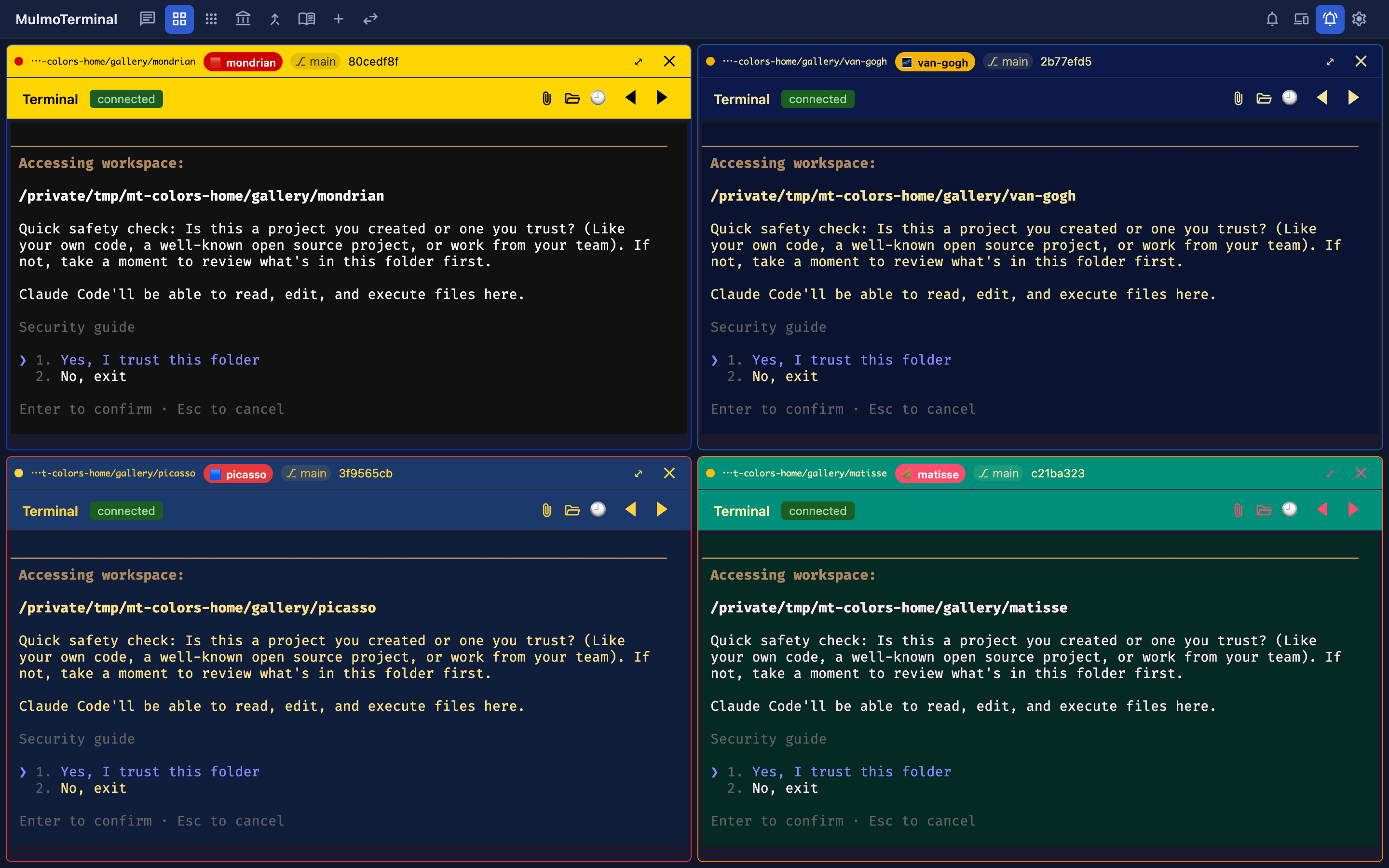
As cells pile up it gets hard to tell which project is which. Give each repo a name badge and its own colors in .mulmoterminal.json and they're unmistakable — headerColor/badgeColor tint the frame, while colors reaches all the way into the terminal's own background and text. (The example above dresses four repos in Mondrian / van Gogh / Picasso / Matisse palettes.)
| Field | Meaning |
|---|---|
name |
Label shown as a badge in the terminal/cell header. |
icon |
An image marking this directory — shown in the cell header, the cockpit roster, the filmstrip thumbnails, the launcher's directory chips, and the phone's terminal list and terminal screen. Either a path relative to this directory (an absolute path, or a ../ that escapes it, is rejected), an http(s):// URL, or a data:image/… URI. PNG / JPEG / GIF (animated plays) / WebP / AVIF / SVG / ICO / BMP. Not to be confused with a header button's icon, which is a Material Symbols name (or github:<name> for one of GitHub's icons), or with the small glyph a chat started from a collection wears beside its status dot — that one is the collection's own icon, and it says which collection the cell was opened for while this one says which directory it runs in. Omit it and the repository's own favicon is used (public/favicon.svg, apple-touch-icon.png, a web manifest — see autoDirIcon); false means no icon here and stops that search. |
backgroundImage |
A picture shown faintly behind this directory's terminals, blended with the text so it stays readable on either theme. A string is the image (15% opaque, fills the terminal); { "image", "opacity", "fit" } sets how faint (above 0, at most 1) and whether it crops to fill (cover) or shows whole (contain). The image follows icon's rules. |
badgeColor |
Badge background color (#rrggbb); text auto-contrasts. |
headerColor |
Header background color (#rrggbb) — the grid cell's header row and the terminal's own header row (grid row 2). While a terminal is working/blocked the status tint still shows; the custom color applies when idle. |
headerTextColor |
Header text color (#rrggbb) — everything written on the header: the dir path, title and prompt, plus the model/context badge, the token counts and any custom chip. Omit it and a readable colour is derived from headerColor. It applies while that colour is what shows: a working/done/blocked cell paints the theme's own status tint, so its text returns to the theme's too — an ink chosen for your header colour is not readable on a tint the theme mixed. Recolour those states with headerStatusColors instead. |
headerStatusColors |
What the header shows once a status owns the background: an object keyed by working / done / blocked (there is no idle — headerColor is idle). Each value is a background #rrggbb, or { "background": …, "text": … }. Omit text and a readable one is derived from the background, so naming one colour can never come out unreadable. A status you don't name keeps the theme's tint. |
headerStatusTint |
"background" (default) lets a status replace the header background. "none" keeps headerColor while working and done — the status still reads from the cell border, the status dot and the pill. It deliberately does not reach blocked, the one state where nothing proceeds until you answer; give that state a colour of its own in headerStatusColors if you want one. |
cellColor |
Cell body background color (#rrggbb) — the frame around the terminal. |
cellBorderColor |
Cell border color (#rrggbb). The status frame (working/blocked) still overrides it while active. |
dotColor |
Idle status-dot color (#rrggbb). The working/waiting colors are unchanged so the activity signal stays intact. |
buttonColor |
Header icon button color (#rrggbb) — expand / close / attach / folder / etc., across both header rows. |
theme |
xterm palette for terminals in this directory (one of the built-in theme ids). |
colors |
Per-key xterm palette overrides applied on top of theme (or the app theme when theme is unset). Keys are xterm ITheme names (background, foreground, cursor, selectionBackground, the 16 ANSI colors, …); values are hex (#rgb / #rrggbb / #rrggbbaa). Unknown keys / bad values are dropped. |
fontSize |
Terminal font size in px for this directory (8–32), overriding the Settings value. A size outside the range is clamped; a non-number is ignored. Changing it re-fits the terminal, so the PTY learns the new width — unlike browser zoom, which leaves the two disagreeing. |
orderPriority |
This directory's rank in the grid's priority ordering — the third mode on the toolbar's ordering button, next to auto (attention-first) and manual (the move buttons). Any integer, lowest first; negatives are allowed. Directories that set nothing sort last, keeping their existing order, so adding the key to one project doesn't shuffle the rest. The grid reads it in priority mode only; the launcher's directory chips sort by it, so a project sits in the same place on both. The one exception is the workspace chip, which always leads the launcher's row regardless of any rank — it is not one of the directories being ranked against each other, and it is the one place a claude or codex session reaches every GUI tool without registering anything (agy, grok and muse get what the directory registered wherever they run — see MCP server ids). |
fontFamily |
CSS font-family stack for this directory's terminals, overriding the global fontFamily. Use the names as your OS lists them ("'Cica', 'MS Gothic', monospace"). An unusable stack is ignored whole rather than half-applied; monospace is appended if you name no generic family. Prefer fonts whose fullwidth glyphs are exactly twice the Latin width, or box-drawing frames tear. |
sound |
Attention sound for this directory's sessions, a path relative to the directory (served at GET /api/dir-sound). The fallback for every kind. |
sounds |
Per-kind override of sound: { "command-failed": "preset:gong" }. Each value is a preset:<id> or a directory-relative path, under the same confinement. |
appendSystemPrompt |
Whether this directory's Claude sessions are asked to end a reply with a closing summary (see Closing summary). Omit to follow the global appendSystemPrompt, which is on; true / false here outranks it. Read per spawn, so a new session in this directory picks up an edit without a restart. |
worktreeEnv |
Values every working tree of this project needs its own of — the port its dev server binds, the database its migrations touch. A worktree isolates files, not ports: two trees running yarn dev both reach for 3000 and the second one dies. Each variable is { "kind": "port", "base": <1024–65215> } (a free port, base + a multiple of 10 — the checkout keeps base, its worktrees take the numbers above it) or { "kind": "slug", "prefix": "…" } (a [a-z0-9_] name from the tree's task name, ≤ 63 chars, for a database / schema / container). Up to 16, under whatever names the project reads (PORT, VITE_PORT, …). A value is reserved once and kept (~/.mulmoterminal/worktree-env.jsonl) for as long as its declaration is unchanged, so a running dev server's port never moves under it; editing base re-allocates, renaming or dropping a variable releases what it held, and removing the worktree releases all of them. Set on every terminal in the directory — agent cell, Shell, launcher, Run command — and shown on the header's env chip, where a port is a link to http://localhost:<port>. MulmoTerminal hands out the name; creating the database is the project's own job. |
addDirs |
Extra directories this project's Claude sessions may read and edit — the terminal-side equivalent of opening several folders in one VS Code workspace, via Claude Code's --add-dir. Relative entries resolve against this file's directory ("../shared-lib"), a path that doesn't exist is dropped, max 16. Claude only: codex has no equivalent flag and ignores the key. |
Security. sound and every sounds entry are directory-relative paths only — absolute
paths and any ../ that escapes the directory are rejected, and the path is never taken from the
HTTP request, so an opened project can't point the player at arbitrary files.
When changes take effect. A write made through Claude's tools — which includes the
mulmoterminal-dirs skill — applies live: the tool hook that reports the write doubles
as the reload signal, so colors, palette, font size and grid order update without reopening
anything. There is no filesystem watcher, so an edit made outside a session (your own
editor) is picked up when the terminal is next opened.
Checking what took effect. Settings → Directory settings lists your recent directories
and expands each one to the values in force, with a swatch per color and the path of the file
they came from. It also names the keys it dropped (a color that isn't #rrggbb, a size out
of range) and the keys it doesn't read at all (badgeColour, a global-only setting) — which is
what tells "I never set that" apart from "I set it and it didn't take".
Changing it there. Under the values, Change here is a form for the name, the seven chrome
colors, how the header shows a running session (headerStatusTint) and its colour per status
(headerStatusColors), the terminal theme and palette (colors), font size, font family, grid priority, the model its
sessions start on (provider / model), the closing summary (appendSystemPrompt) and extra
directories (addDirs), its icon, terminal background, and attention sounds (sound / sounds), and its header buttons,
chips and command-palette entries (buttons / chips / commands) with the same editors the global
lists use, its Skill menu (skills, in order), Mulmo menu decks (decks) and per-worktree variables
(worktreeEnv) — every key the file can hold. This checkout only moves a key into
.mulmoterminal.local.json (and Share moves it back). A cell's path menu has This directory's
settings, which opens Settings on that directory. Each change is written to
the directory's file at once and applies without a restart; Use global takes the key out
again. A key .mulmoterminal.local.json already holds is written there. Keys the form doesn't
show are left as they are, and a file that isn't a JSON object is not touched — fix it in Files.
Running
yarn install            # postinstall fixes node-pty prebuilt binary perms

yarn dev                # backend (:34567) + Vite UI (:6856), concurrently — open http://localhost:6856
# or individually:
yarn dev:server         # backend only  (node --import tsx --env-file-if-exists=.env server/index.ts)
yarn dev:client         # Vite dev server only

yarn typecheck          # type-check everything (vue-tsc -b)
yarn build              # type-check + vite build -> dist/
yarn server             # run backend; serves dist/ + the APIs on :34567
yarn test               # vitest run
yarn typecheck covers the whole repo. The root tsconfig.json is a solution
file that references all five projects, so one vue-tsc -b builds them:
tsconfig.app.json (client), tsconfig.node.json (vite config),
tsconfig.server.json (backend, run directly via tsx with no build step),
plus tsconfig.test.json and tsconfig.test-server.json for the specs — which
need checking of their own because vitest strips types rather than checking
them. They exist as separate projects because each has its own compiler options
(the client ones DOM + .vue, the server ones node, the specs with
noUncheckedIndexedAccess off).
In dev, open the Vite URL; its proxy forwards /ws, /ws/pubsub, and /api to
:34567, plus the two mounts that serve a presentHtml page to the Canvas iframe,
/artifacts and /htmlfile — a page path missing from that list is answered by
Vite's SPA catch-all with index.html, which renders as a blank iframe rather
than an error. In production, run yarn build then yarn server and open
http://localhost:34567.
Scripts (Run menu)
An empty grid cell's launcher sets the Working directory by typing, by a preset
chip, or with the 📁 folder button (a native OS folder dialog). The preset chips are
the directories you have launched in — worktrees excluded, since one is a single task's
branch that is deleted with the task, not a place to launch in again; the
workspace leads them always, labelled
WORKSPACE and marked with an icon, whether or not you have ever launched there — it is
the one directory where a claude or codex session reaches every GUI tool (agy, grok and muse
get what the directory registered, there as anywhere — see
MCP server ids), so it is never a click you can
lose. It has no remove button for the same reason. It is named for its role rather than its
folder, because the folder name (~/mulmoclaude by default, or wherever CLAUDE_CWD
points) says the least interesting true thing about it; the real path is on its hover.
The launcher is shorter in the workspace, because two of its choices do not apply there. The per-directory Canvas switches are replaced by a line saying every GUI tool is already available — a session there is handed the whole GUI MCP at spawn, so a switch would register a group URL that then has nothing left to serve. With Antigravity, Grok or Muse picked they stay, in the workspace as everywhere else: none of the three is handed anything at spawn — agy and grok read their servers from a file in the directory, muse from a plugin installed for the whole machine — so the switches are their only route to a GUI tool and hiding them would leave the session with none (see MCP server ids). And the worktree section is hidden: a worktree isolates work on one codebase onto a branch, while the workspace is what a session works from (the shared wiki, collections and accounting live there), which is precisely what a detached branch would cut it off from. Both come back the moment you point the field at a project directory.
It also offers a
run a script row
that launches project scripts (a dev server, tests, a build, …) in that cell, in
the directory the cell is pointed at — so a whole workflow lives in one window
alongside the Claude sessions. Scripts are per-directory: the cell reads the
script.json of whatever directory you select, so different cells can offer
different projects' scripts.
The same launcher also has an or launch row for your configured launch commands
— any interactive command — set in Settings (the gear button) → Launch commands as
{ label, command } (e.g. htop → htop, Codex → codex). A plain shell needs no
entry here: the Agent Picker's Shell option already opens $SHELL. Unlike
a one-shot script, a launcher runs as a persistent terminal in the cell's directory:
it survives grid page switches and reconnects, and its dot shows running vs. exited (it
reports no activity of its own, so no blocked/done states).
Every running terminal's header also has a ▶ Run ▾ dropdown (next to the
connection status) — but only when the
open project has scripts (no script.json, no button). It lists the open
project's script.json — the directory that terminal runs in — and launches the
picked script in a spare grid cell (reusing an open launcher, else a new one), so
you can watch it. So you can start a
dev server or tests for the project you're working in without disturbing the
session that's running.
The list is populated from a script.json at the chosen directory's root. It's
optional; a directory without one simply shows no scripts.
// <dir>/script.json
{
  "scripts": [
    { "label": "Dev server", "command": "yarn dev" },
    { "label": "Unit tests", "command": "yarn test" },
    { "label": "Build", "command": "yarn build" },
    // optional per-script working dir (relative to this file, or absolute):
    { "label": "Sub server", "command": "yarn serve", "cwd": "packages/server" }
  ]
}
| Field | Required | Meaning |
|---|---|---|
label |
yes | What the launcher shows. |
command |
yes | Shell command, run via the login shell ($SHELL -lc "<command>"). |
cwd |
no | Working dir, relative to script.json or absolute. Defaults to the cell's directory. |
A command terminal is not a Claude session: it has no session id, no hooks, no
transcript, and isn't persisted — it's ephemeral, so a page reload drops it and
closing the cell (or reloading) kills the process. When the command exits, the cell
offers a ↻ re-run. The browser only ever sends the script's index + its
directory; the server reads that directory's script.json and resolves the
command, so the file is the allowlist of what can run.
Each command cell also has a ✦ Summarize button: click it to send the cell's
captured output to claude -p (headless) and get a short Errors / Warnings /
likely cause / suggested fix note in a panel — handy when a build or install
buries the one failing line in thousands. It's manual (never auto-runs) and analyzes
the last 32 KB of output. See
POST /api/command/summarize.
Skills (Skill menu)
Next to the ▶ Run ▾ dropdown, every running terminal's header has a ⚡ Skill ▾
dropdown — and only when the open
project has skills (nothing discovered, no button). It lists the
Claude skills discoverable for
that terminal's directory — both project scope (<dir>/.claude/skills) and user
scope (~/.claude/skills), the same skills Claude sees — and, on pick, runs the
skill in that session: it types the skill's invocation into the terminal and submits
it (for Claude, its /<slug> command; for Codex, which has no slash command, a plain
Use the "<slug>" skill. instruction). Unlike ▶ Run — which launches a
script.json shell command in a spare cell — a skill runs in the session you
picked it from, continuing that conversation.
Ordering: working-dir (project) skills come first, then user-scope ones, alphabetical within each group; a project skill of the same slug shadows the user one.
Filtering: add a skills array to the directory's
.mulmoterminal.json to narrow the menu —
an allowlist of slugs that also sets the order (only those show, in that order). Omit
it to show everything.
// <dir>/.mulmoterminal.json
{ "skills": ["review-diff", "commit-msg"] }
Each menu item shows the skill's id, with its SKILL.md description as the hover
tooltip. A directory (or workspace) without any .claude/skills simply shows no
button. Skills are discovered read-only; the menu never creates or edits them.
Decks (Mulmo menu)
Beside ⚡ Skill ▾ is ⊞ Mulmo ▾ — the decks (mulmoScript presentations) this project offers, one click from the Canvas. It appears only when there are decks to show (none, no button), like the two menus next to it.
Picking one shows it in the Canvas beside that cell, enlarging the cell first if it was tiled. Nothing is typed into the session and the agent is not asked: this is a viewer, so it costs no tokens and works while the agent is busy.
Two sources, both named — the menu never searches your disk:
artifacts/stories/under the workspace — where the plugin keeps the decks an agent makes. Always offered, nothing to configure.- Decks you list yourself, for one kept inside a repository:
// <dir>/.mulmoterminal.json
{ "decks": ["decks/launch.json", "docs/talks/retro.json"] }
Paths are relative to that file and must stay inside its directory — ../elsewhere.json and
absolute paths are dropped, because a config file travels with a clone. Each deck is named by its
own title, or by its file name when it has none.
Why you list them rather than the menu finding them: a search does find them — along with everything else on disk that happens to parse as a deck. Measured on a real workspace: 250 files matched, 33 were the user's own decks and 217 were a checked-out repository's test fixtures and samples. A menu is a short list of things you chose.
Where the decks have to live: anywhere. A deck under the workspace — or under a directory in
your launcher's saved list (up to 64 in total, read once at startup) — is addressed by its place in
that directory; one anywhere else is addressed by its own path. Either way it opens, and a deck you
open both ways is one card, not two. A deck you can see in the file tree is reachable there too
— right-click a row and choose Open in the Canvas — with no configuration at all, as long as the
pane knows the directory its tree is rooted at. It shows that path in its header; a pane still
reading (default workspace) has nothing to resolve a row against and offers no entry.
If a deck cannot be opened (it was deleted, or the workspace moved since startup), the cell says why rather than doing nothing.
Files view (browse & edit)
A terminal header can carry a 📁 Files button — add it as a header button
("open": { "files": "${dir}" }) — that opens a full-screen file explorer
rooted at that terminal's project directory — so after Claude says "wrote foo.md"
you can jump straight there to read or edit it. The left pane is a lazy-loaded directory
tree; clicking a file opens it in a CodeMirror editor (Markdown / JS-TS / JSON
highlighting, everything else as plain text). Markdown files get a Preview toggle
that renders via the server's sandboxed …/md HTML, with a ```mermaid fence drawn as a diagram
(its code block stays under it, folded, so the copy button is still there); a .csv / .tsv previews as a table (the
same …/table document a clicked path opens, in the app's colours), a .json as indented JSON (the
…/json document, likewise; only a .json whose top level has a $mulmocast key is offered the
**Canvas** view as a MulmoScript), and an .html / .svg as the
page or picture it is. **Save** (or ⌘/Ctrl-S) writes back. **History** lists the versions the pane
kept of the file (in ~/.mulmoterminal/backups, taken when it is opened or reloaded here and before a save
here replaces it — the newest few), to compare with the buffer or restore as an undoable edit (unsaved edits
are kept as a version first).
The open view follows the file on disk. When an agent in another cell — or any editor — rewrites what you are looking at, the editor and the preview catch up on their own; there is nothing to reload. If you have unsaved edits of your own, a banner asks which copy to keep rather than choosing for you.
The server watches a document while a view is open on it, and only under the workspace or under a directory one of your terminals is in — the same directories it serves files from. A Markdown file outside all of those still opens and still edits; it is picked up by the pane's periodic check rather than the moment it changes, and a Canvas card on it waits for the next thing that does announce.
Beside an enlarged terminal, not only full-screen. Expand a grid cell (⤢) and its header gains a folder toggle that splits the enlarged area in two: terminal on the left, the same explorer + editor on the right, rooted at that cell's directory. Drag the divider (or focus it and use ←/→, Home, End) to resize — the terminal keeps a floor, so a squeeze shrinks the pane rather than reflowing xterm into garbage. It works in both zoomed layouts (cockpit roster and thumbnail filmstrip), the pane re-roots as you walk the zoom between terminals, and whether it's open plus how wide it is are remembered per browser. Without enlarging anything, a tile's History / Tools menu (or Browse files in the app) opens the same pane to the right of the tiled grid; it stays on that tile until another tile's menu asks for it, and only an enlarged cell's pane can take the full width.
**Coming back looks the way
…