Brightspace MCP Server





By Rohan Muppa, ECE @ Purdue
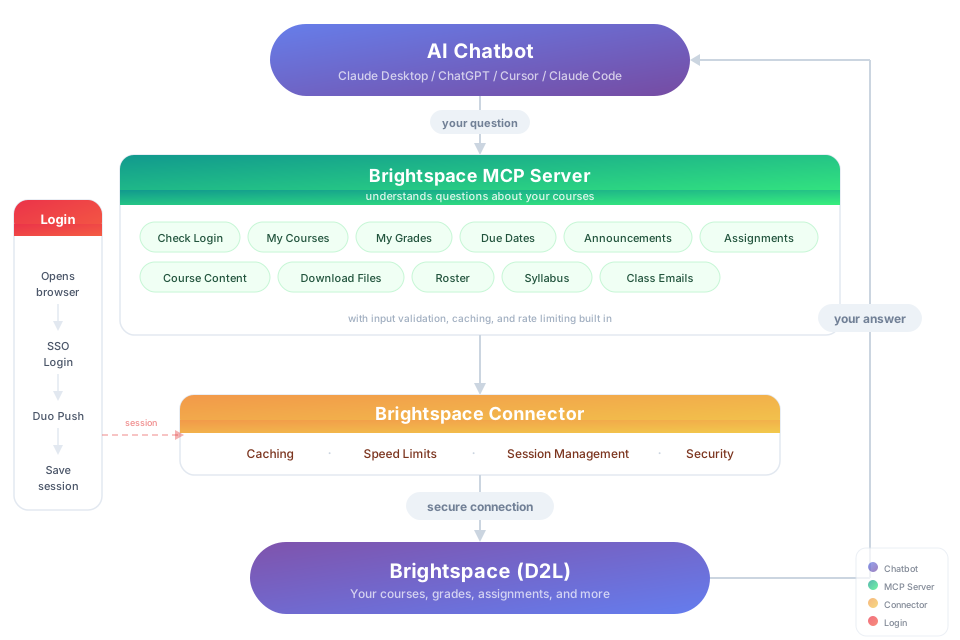
Lets your AI see your Brightspace classes, so you can just ask:
"What's due this week?" · "Am I passing all my classes?" · "Summarize today's announcements" · "Turn my lecture slides into flashcards"
Works with Claude Desktop, Claude Code, Cursor, ChatGPT Desktop, Windsurf, and any other app that supports MCP (the standard way to plug tools into an AI). It only reads your courses — it never submits, edits, or deletes anything.
Get started in 3 steps
Install Node.js (version 22 or newer) if you don't have it. Download, run the installer, done.
Open a terminal and run the setup:
npx -y brightspace-mcp-server@latest setupIt asks for your school's Brightspace address, your username and password, and how you confirm it's you when you sign in (a phone app, or another way like a text message). Your password goes into your computer's own password store (Keychain on Mac, Credential Manager on Windows), never into a file. Before signing you in, it connects itself to Claude Desktop, Cursor, Antigravity, Codex, or Claude Code if you have them. If one of them already has a
brightspaceentry pointing somewhere else (an old local build, a fork), setup shows you that entry and asks before replacing it.On a Mac: when Keychain asks whether
nodemay use the saved Brightspace password, choose Always Allow, not just Allow. That lets later sign-ins (theauthcommand and questions from your AI app) read it without asking again.Restart your AI app and ask it something — the first question signs you in. If your phone asks you to approve a sign-in, approve it and ask again.
At one of these schools, add the flag and skip typing the address: --purdue, --suny, --western, --tudelft, --cuny, --leiden, --mcgill, --ngeeann, --javeriana.
Rather have the AI install it for you? Paste this into Claude Code, Cursor, Windsurf, Copilot, or Codex:
Install brightspace-mcp-server for me by following
https://github.com/RohanMuppa/brightspace-mcp-server/blob/main/LLMs.md
(use --purdue at Purdue, --suny at SUNY, --tudelft at TU Delft, --cuny at CUNY, --leiden at Leiden, --mcgill at McGill, --ngeeann at Ngee Ann Polytechnic, or --javeriana at Javeriana Cali).
The AI does everything it can by itself: it checks your computer, downloads the browser sign-in uses, and connects your AI apps. Then it gives you one command to run in a terminal. That command asks for your password and waits for you to approve the sign-in on your phone. That's the only part that needs you. Afterwards the AI checks that it can see your courses.
Using a different AI app? Add the command npx -y brightspace-mcp-server@latest to its MCP settings (on Windows: cmd /c npx -y brightspace-mcp-server@latest). Exact steps for each app: docs/troubleshooting.md.
Does my school work?
If your school uses D2L Brightspace, yes. These have automatic sign-in built in:
| School | Sign-in | Flag |
|---|---|---|
| Purdue | Microsoft (phone approval, authenticator code, or browser) | --purdue |
| SUNY | Shared site with a campus picker | --suny |
| Western University | Microsoft | --western |
| TU Delft | NetID (no two-factor) | --tudelft |
| CUNY | CUNY Login, authenticator code each time | --cuny |
| Leiden University | SURFconext → Microsoft | --leiden |
| McGill University | Microsoft Entra | --mcgill |
| Javeriana Cali | OneGate (password + authenticator code) | --javeriana |
| Ngee Ann Polytechnic | Microsoft Entra | --ngeeann |
| Any other D2L school | Paste your Brightspace address. If the login page isn't recognized, pick option 2 at setup's sign-in question so the page opens for you to finish by hand | none |
School-specific quirks: docs/sign-in.md.
Things to ask
| About | Try |
|---|---|
| Grades | "Am I passing all my classes?" · "Compare my grades across courses" · "What did my professor say about Mini-Assignment 1?" (own assignment feedback is read from every route Brightspace documents for students) · "Is there feedback on my midterm?" (quiz-scored grades link to the quiz, since quiz feedback, including feedback only viewable in LockDown Browser, isn't readable through the API) |
| Due dates | "What's due in the next 48 hours?" · "Build me a study schedule for the week" |
| Assignments and rubrics | "What does the lab 4 spec actually ask for?" · "Why did I lose points on the analysis criterion?" · "Did I turn in HW 3?" (if Brightspace won't give students their own submission list, the assignment's feedback page is checked instead; when neither shows a submission it's reported as unknown, never as missing) |
| Quizzes and exams | "Which quizzes close this week?" · "Is there a midterm in the gradebook that isn't on my assignments list?" (quizzes are collected from the quiz list, the course content, and the gradebook, so a closed quiz or one the list leaves out still shows up; each course says whether its quiz sources all answered, and if Brightspace refused one it's marked incomplete rather than passed off as everything; "complete" means every source answered, not that every quiz is guaranteed to be listed. A gradebook column linked to a quiz the list omits now shows up as a quiz with its dates and attempts instead of a bare grade-only row when the quiz can be read. Gradebook-only rows now also appear on tenants that send only the documented GradeType on grade columns; hidden grade columns, hidden assignments and inactive quizzes never produce one. Content quizzes beyond the first 30 per course are listed from the course content alone and the course is marked incomplete. Quiz rows may also say whether they are open, closed, or not yet open, and mark a quiz whose details Brightspace would not return; gradebook lookups for unlisted quizzes are capped at 20 per course, or 5 when the course's quiz tool can't be identified) |
| Announcements | "Did any professor post something important today?" · "Read the file attached to today's announcement" |
| Course content | "Find the midterm review slides" · "Download every PDF from Module 5" · "Search this course for office hours" · or just read a file inline instead of saving it |
| Syllabus | "What's the late policy in ECE 264's syllabus?" (if the course keeps its syllabus in an external tool such as Simple Syllabus, you get the link to open instead) |
| People | "Who are the TAs for ECE 264?" · "Who is in my project group?" |
| Discussions | "Summarize the latest posts in the final project thread" |
| Lecture videos | "What did the professor say about pinch-off in Tuesday's recording?" (Kaltura, including BoilerCast LTI links, and YouTube. When YouTube asks for a sign-in or a "not a bot" check, the answer says so, with the video link and how to get the transcript yourself: open the link in your browser, choose "Show transcript", and paste it in. The server never gets past that check for you) |
| Calendar | "When is my midterm?" · "Is lab cancelled on Thursday?" |
| For instructors and TAs | "Which students haven't submitted Lab 4 yet?" · "What feedback did I leave on this student's homework?" · "Download that student's submitted PDF" (students get a clear "instructor access required" note for these, but can read their own released feedback, below) |
| Signing out | "Sign me out of Brightspace" (your AI app may ask you to confirm first; details under When it asks you to sign in) |
Prompts
Apps with a prompt picker (like Claude Desktop) also offer four ready-made prompts, so you can start from one click instead of typing a question:
| Prompt | Arguments | What it asks for |
|---|---|---|
weekly_briefing |
— | A 7-day rollup of what's due, what's new, and what changed in your grades, across every course |
grade_audit |
courseId (optional) |
Analyzes grades for one course, or all of them, and flags missing or low-scoring items |
study_planner |
daysAhead (optional, default 7) |
Plans study time from upcoming due dates and calendar events |
course_summary |
courseId (required) |
Syllabus, content outline, assignments, and grades for one course |
Settings you might want
All optional, set in your AI app's MCP env config or your shell. The full list is in LLMs.md.
| Setting | What it does |
|---|---|
D2L_REMEMBER_MFA=true |
Tick Microsoft's "Don't ask again" box so later sign-ins skip the second factor (off by default; not for shared computers). setup asks this as option 2 of its one "how often do you want to approve sign-ins" question and saves it as rememberMfa in config.json; the env var overrides it (details) |
D2L_TOTP_SECRET |
An authenticator setup key, so a Microsoft Entra "enter a code" challenge is answered on this computer instead of on your phone (off by default). Prefer setup (option 3), which keeps the key in your OS keychain; this variable is for CI and containers with no keychain and is weaker, because anything that can read the process environment gets your second factor (details) |
D2L_HEADLESS=false |
Show the browser window during sign-in, for MFA methods that need a click |
D2L_DUO_PASSCODE=1 |
On Duo, type a passcode instead of waiting for a push |
D2L_SESSION_COOKIE / D2L_ACCESS_TOKEN |
Skip the browser entirely with a pasted cookie or token (how) |
D2L_INCLUDE_COURSES / D2L_EXCLUDE_COURSES |
Limit which courses the AI sees, by course id |
D2L_ACTIVE_ONLY=false |
Include courses whose enrollment has ended |
D2L_CURRENT_ONLY=true |
Only show courses in their current enrollment window, like Brightspace's "Current Courses" widget |
D2L_NO_UPDATE_CHECK=1 |
Turn off the new-version notice |
D2L_RUNTIME_IDLE_SECONDS |
How long the shared background server waits with no question running before it stops (default 600) |
D2L_DEV_MODE=true |
Write a local, content-free log of tool calls and sign-in events, for debugging session problems (how) |
One server for all your chats
Every chat already shares one Brightspace server, with nothing to set up. Each chat still launches the usual command, but that command is now only a small relay: the first question from any chat starts one shared background server for this computer, and every other chat (Claude Desktop, Codex, Cursor, …) uses that same one. That means one sign-in, one saved session, and one cache for all of them. Two chats starting at the same moment still end up with one server. Closing a chat never interrupts another chat's question. After 10 minutes with no question running, the shared server stops by itself, and the next question starts it again.
Chats share a server only when they use the same settings and the same version of this package. A chat started with different D2L_* settings, or after an update, gets its own. Because the background server isn't attached to any chat, its log goes to runtime.log under ~/.d2l-session/…/shared-runtime/. Set D2L_RUNTIME_IDLE_SECONDS to change how long it waits before stopping.
Running the shared server yourself (optional)
You can also run one copy yourself and point every chat at it by URL. It uses the same saved password, saved session, and sign-in as before; a question that needs a sign-in still signs in once, for every chat.
- Make a secret token, once. Chats must present it, so other programs and web pages can't read your grades. Generate one:
Save it as a user environment variable namednode -e "console.log(require('crypto').randomBytes(32).toString('hex'))"D2L_HTTP_TOKEN, where both the server and Codex can see it. On Windows: Start → "Edit environment variables for your account" → New, paste it as the value (apps and terminals opened afterwards see it). On macOS or Linux: addexport D2L_HTTP_TOKEN=<token>to your shell profile (~/.zshrc,~/.bashrc); a Codex app launched from the Dock or a desktop menu may not read that profile, so start it from a terminal. The server never prints the token. - Start the server and leave it running in a terminal of its own:
This needs a release with HTTP support; to try it from a source checkout first, runnpx -y brightspace-mcp-server@latest httpnpm run build, thennode build/index.js http. It listens onhttp://127.0.0.1:18765/mcp, on this computer only. Pick another port with--port 18766orD2L_HTTP_PORT, and use that same port in the URL in step 3. Start it once per login: chats do not start it, and a second copy on the same port stops at once with "already in use" rather than running alongside the first. Nothing signs in at startup. - Point Codex at it. In
~/.codex/config.toml, replace thecommandandargslines of your[mcp_servers.brightspace]entry with:
([mcp_servers.brightspace] url = "http://127.0.0.1:18765/mcp" bearer_token_env_var = "D2L_HTTP_TOKEN"env_http_headers = { "Authorization" = "D2L_HTTP_AUTHORIZATION" }also works, if that variable holdsBearer <token>.) A project's own.codex/config.tomloverrides this one, so remove anybrightspaceentry there or change it the same way. Rerunningsetuprecognizes this entry and keeps it, token settings included. - Restart Codex. Chats that were already open keep the old per-chat server until Codex restarts. If you stop or restart the shared server, calls fail until it is back; if they still fail after that, start a new chat or restart Codex.
Things that change:
- Settings go to the server, not to Codex. A URL entry has no process to pass an
envtable to, soD2L_*settings (the table above) are set in the terminal that runshttp, in a.envfile in the directory you start it from, or saved bysetup. - Sign-in messages show up in the server's terminal. The number to approve still comes back in the chat's answer, and, in clients that show tool progress, while the question is running.
- Stopping it: press Ctrl+C. Questions already running finish first; press Ctrl+C again to stop at once.
- Updating it: restart the server, not Codex. Restarting a client only reconnects it to the server that is already running the old version. Stop the server and start the same
httpcommand again with the sameD2L_HTTP_TOKEN, port, and settings; from a source checkout, runnpm run updatefirst. Update notices from a shared server say this too.
Any other MCP client that can connect to a Streamable HTTP URL with a bearer token can share the same server. To go back to the automatic shared server, put the command/args entry back (rerun setup and say yes when it offers to switch Codex back) and stop the server you started.
When it asks you to sign in
There's no separate login — asking a question signs you in, and it stays signed in on its own most days. When your school wants two-factor again, the number to approve shows up right in the answer; approve it on your phone and the assistant keeps checking on its own — each check waits up to 45 seconds and the original question completes as soon as the sign-in does, without you having to say you've approved it. If your AI client shows tool progress messages, the number appears while the question is still running instead. If it ever gets stuck, run this in a terminal:
npx -y brightspace-mcp-server@latest auth
On a Mac, sign-in first reads your saved password from Keychain. If you picked a one-time Allow at the Keychain prompt, a later sign-in from your AI app or another terminal can fail or hang waiting for an approval nobody sees; pick Always Allow instead. That permission only lets the local Brightspace server read its own saved sign-in password, nothing else in your Keychain.
Want fewer 2FA prompts? setup asks one question, "How often do you want to approve sign-ins on your phone?": 1 every time (default), 2 remember this computer, or 3 let this computer answer Microsoft's code requests itself (needs an authenticator setup key). Options 2 and 3 are opt-in and not for shared computers; to turn them off, rerun setup and pick 1. The tradeoffs and the steps for getting the key are in docs/sign-in.md.
To sign out early (on a shared computer, say), just ask your AI app to sign you out of Brightspace, or run npx -y brightspace-mcp-server@latest auth --logout in a terminal. It deletes this computer's saved Brightspace session, so the next question does a full sign-in. Your saved password, authenticator key, and settings are kept, so with a saved authenticator key that sign-in can finish without you; on a shared computer, also delete the saved brightspace-mcp-server entries from your computer's password store (Keychain Access on a Mac, Credential Manager on Windows). Other AI apps open on this computer are signed out too and will ask you to sign in on their next question. (An app you opened before updating may keep answering for up to an hour; quit and reopen it to sign it out right away.) It only clears this computer; it does not sign you out of Microsoft or Brightspace anywhere else. If a sign-in is in progress, it refuses and deletes nothing.
How often you're asked is up to your school, not this tool. Everything else about sign-in — Duo, authenticator codes, visible-browser mode, and running without a browser at all (Docker, WSL, hardware keys) — is in docs/sign-in.md.
Something not working?
- Run
npx -y brightspace-mcp-server@latest doctorfirst — it checks your Node version, the sign-in browser, saved setup, credential store, Brightspace connectivity, saved sign-in, and installed version, and tells you exactly what to fix. Authentication failed: The native credential store is locked or unavailable.Your password store is locked or hasn't let this server read the saved password. Unlock it (on a Mac, log in or unlock Keychain Access), then runnpx -y brightspace-mcp-server@latest authagain, orsetupif that still fails, and choose Always Allow when Keychain asks.- It works in the terminal but not in the app: the app starts it separately and may not see your password store yet — see docs/troubleshooting.md.
- The app says the server timed out while starting: open the app's MCP server log. Each startup step prints a timestamped
Startup: ...line before it begins anddone in N mswhen it ends, and a step still running after 10 seconds printsStartup: still ...once. The last such line names the step it was stuck in, often the saved-password lookup in your password store. These lines never include your username, password, or cookies. - Which version do I have? Ask your AI "which version of the Brightspace server am I running?"
- Still stuck? Open an issue and paste what the terminal printed.
For developers
Tool reference, response fields, and environment variables: LLMs.md. What's safe to build against: STABILITY.md. Licensed under the MIT License.