
English · 中文 · Documentation · Web · Android · iOS
Self-hosting
·
npm
·
Connect once. Ready whenever you are.
Continue using your DeepSeek Harness instance from a phone, computer, or browser.
Return to the same Harness session from whichever device is with you. Harness keeps running on your work computer, with the same workspaces, tools, and project setup. Remote is simply another window into that environment.
The DeepSeek Harness desktop edition is supported. When installing manually, use this pinned plugin version through DSH's plugin manager:
ds-harness-remote@0.4.27
Features
- Continue active sessions and review their latest progress from another device
- Send new instructions, change direction, and use image prompts with supported Harness versions from
dsh-v0.1.1-rc.2throughdsh-v0.2.0-rc.2 - Answer questions and permission requests from clients with live conversation controls
- Support the DeepSeek Harness desktop edition with pinned Remote plugin releases
- Open workspaces from another authorized computer on the same account
- Reuse the native Harness interface instead of maintaining a separate desktop conversation UI
- Run a terminal-only dsh-TUI profile as a Host and authorize it with a GitHub or Zhihu QR code
- The Harness Host does not need a public listening port. Connect securely from anywhere with internet access over a bidirectional end-to-end encrypted channel
- Native workspace files, read-only previews, terminal access, and authorized local development-service previews are available through the Harness sidebar.
Install
DeepSeek Harness Desktop support
Remote supports the DeepSeek Harness desktop edition. Use this pinned plugin version through the command-line installation below:
ds-harness-remote@0.4.27
dsh-TUI Host
For terminal Host setup with dsh-TUI, see the dsh-TUI Remote guide.
Command-line installation
Add the exact package version through DSH's plugin manager for the web profile:
dsh plugin --profile web add -w ds-harness-remote@0.4.27
-w targets the profile's own workspace root. It is required on pnpm below 11, which
otherwise refuses the add with ERR_PNPM_ADDING_TO_ROOT.
Restart Harness after installation.
Do not install this package directly with npm. Only dsh plugin updates the selected profile and
adds the bundle's configuration layer.
Android client
Download the latest Android APK from GitHub Releases.
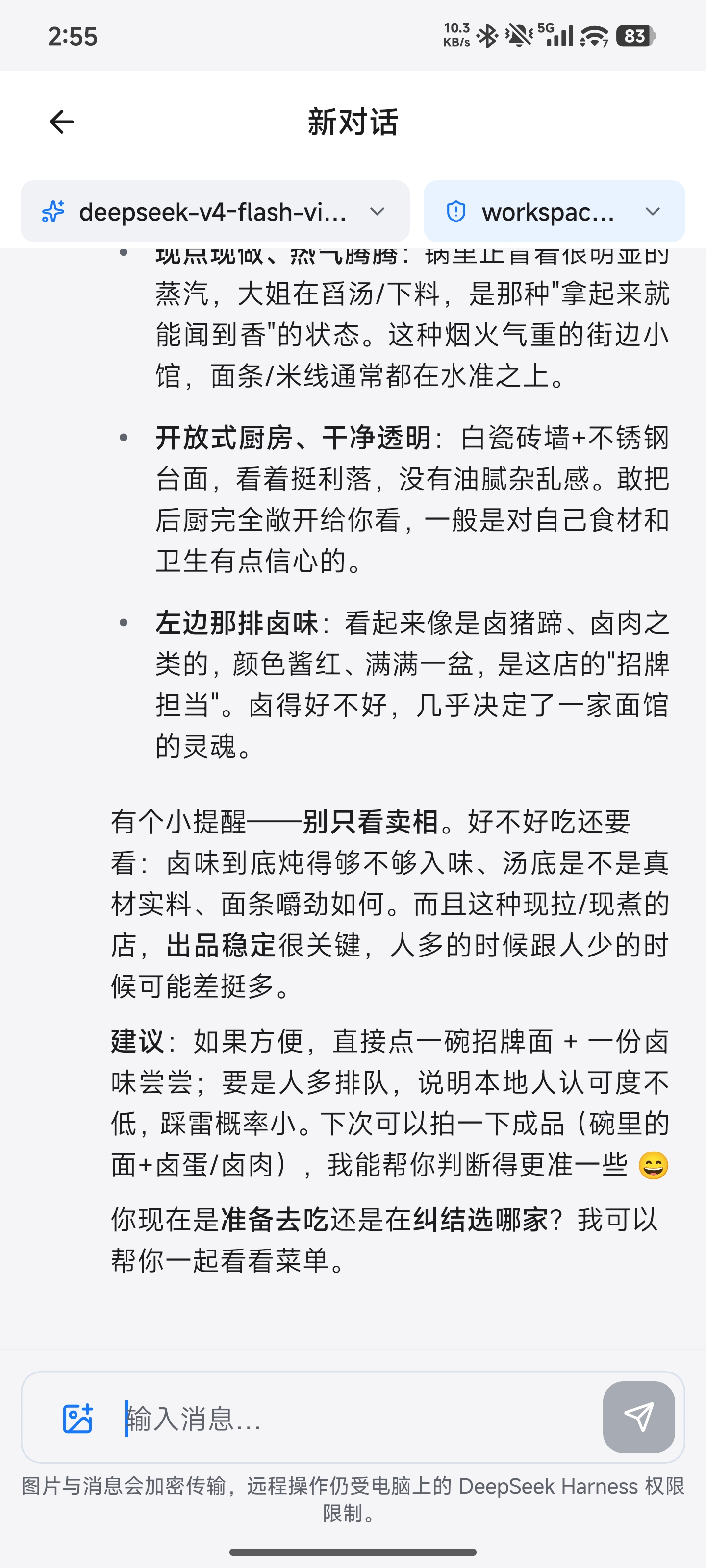
Sign in to the Android client with your existing account, select an available computer, and open a workspace. Continue the conversation with text or image prompts; the conversation toolbar also lets you switch the active model and choose any reasoning effort declared by it.
Automated installation (background service)
Install Remote Host as a background service. For service management, login, directory settings, and uninstallation, see the installation guide.
macOS / Linux:
curl -fsSL https://dsh.r2049.cn/app/install.sh | bash
Windows PowerShell (run as administrator):
$installer = "$env:TEMP\install.ps1"
Invoke-WebRequest -UseBasicParsing https://dsh.r2049.cn/app/install.ps1 -OutFile $installer
& $installer
Quick start
- Open Remote from the Harness sidebar.
- Sign in with a GitHub or Zhihu QR code, or use your account and password. New password accounts can register through Remote Web; the site shows the current invitation requirements.
- The Host starts with control of the current computer enabled. Remote terminal access is also enabled by default; you can turn it off in the detailed Remote settings.
- On another device, open the DeepSeek Harness desktop edition, Remote Web, or the Android client and sign in to the same account.
- Select the online Host, then choose an existing workspace or browse remote directories to open one.
The public service uses the hosted Remote relay. For a minimal single-account deployment, see the self-hosted Server; its Web page shows device status only.
Minimal self-hosted Server
Run the optional single-account Relay Server in apps/server. Set DSH_SERVER_ACCOUNT and DSH_SERVER_PASSWORD; its small Web page offers login and device status. Point both Host and Client at your Server URL and sign in with the same account. Device credentials survive restarts.
Screenshots
Desktop
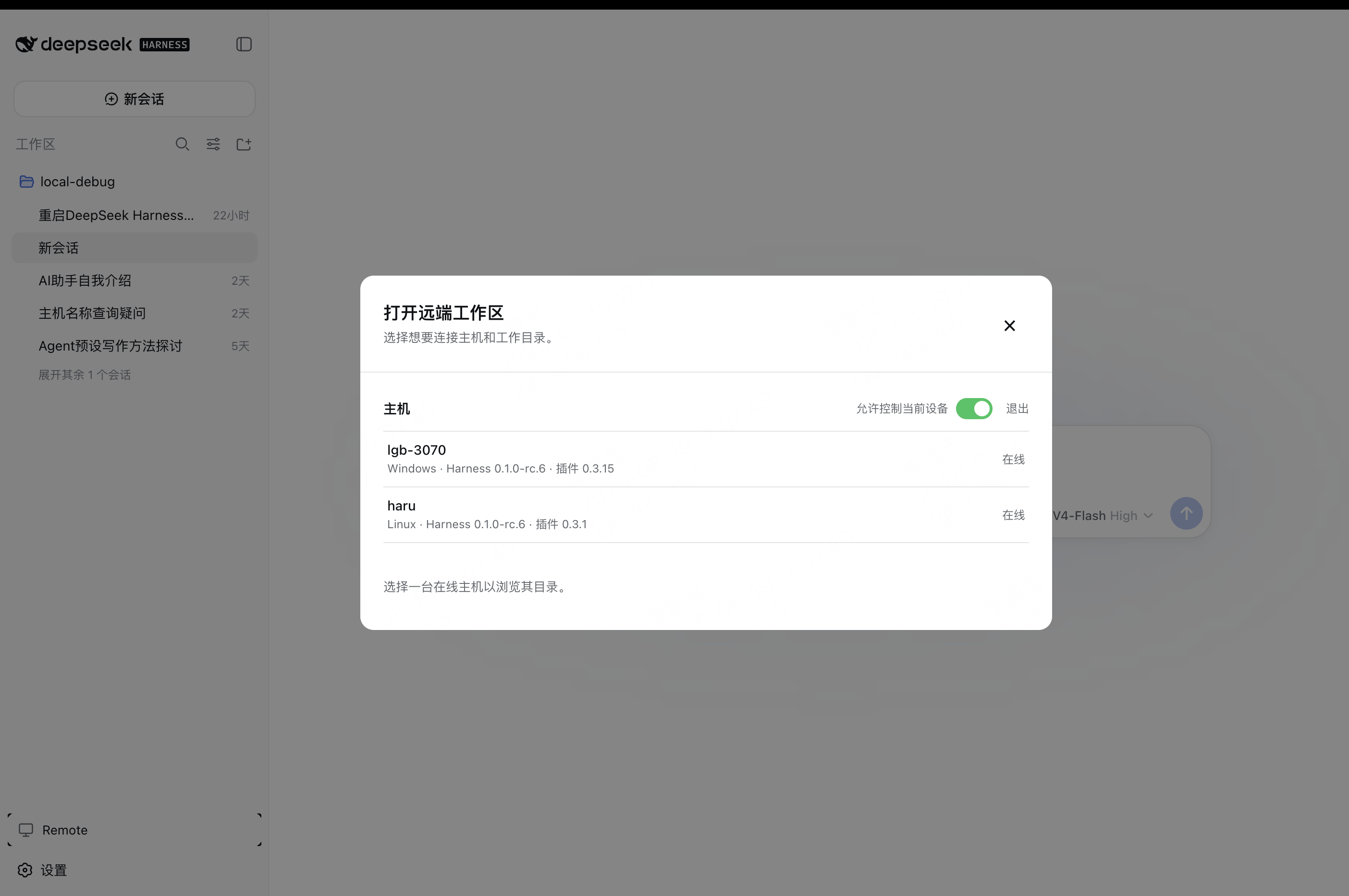
The current computer starts with Allow control of this device enabled and is available as a Host.
On another computer, select an online Host and open one of its workspaces.
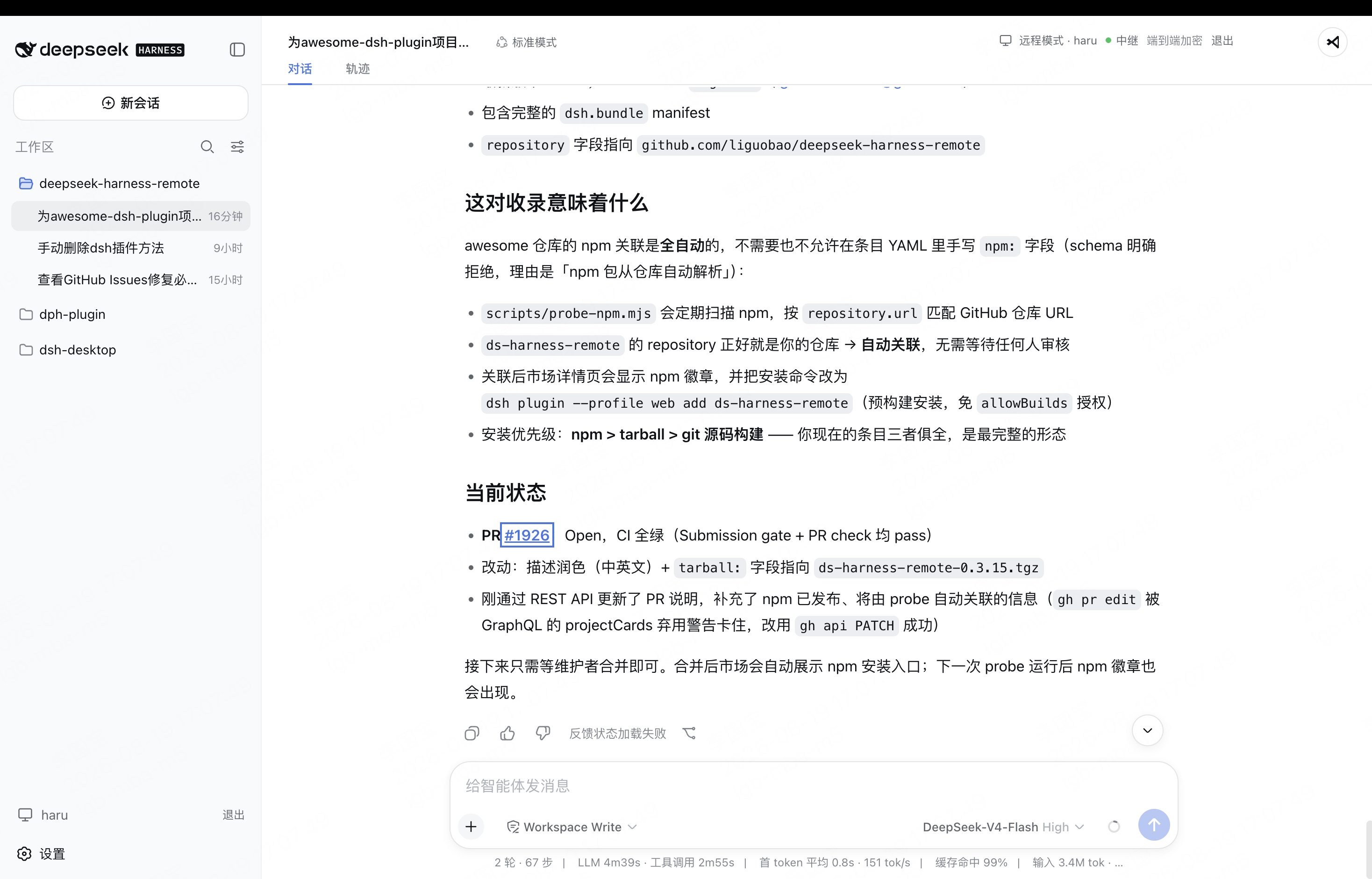
The workspace opens in the native Harness interface, with the active Host and encrypted connection status shown in the header.
Android
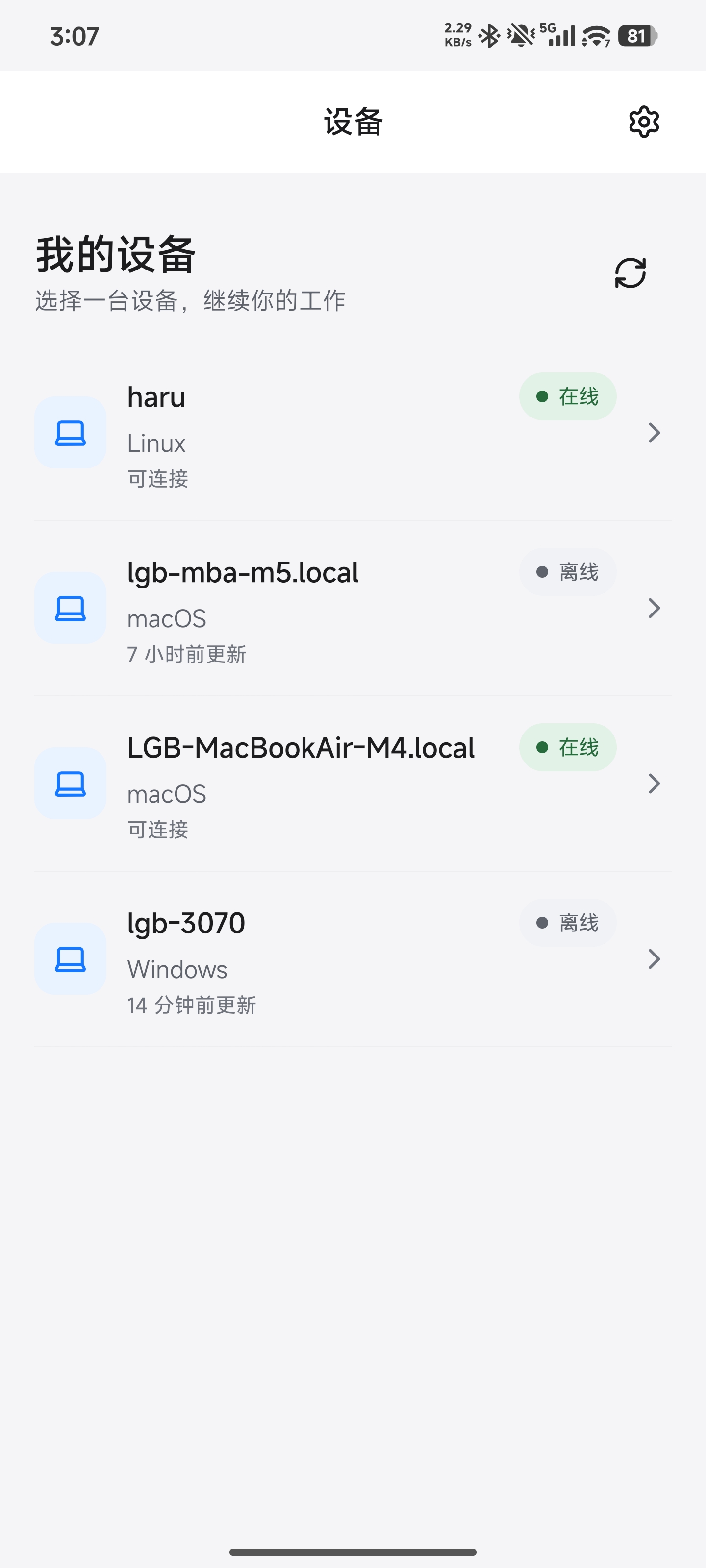
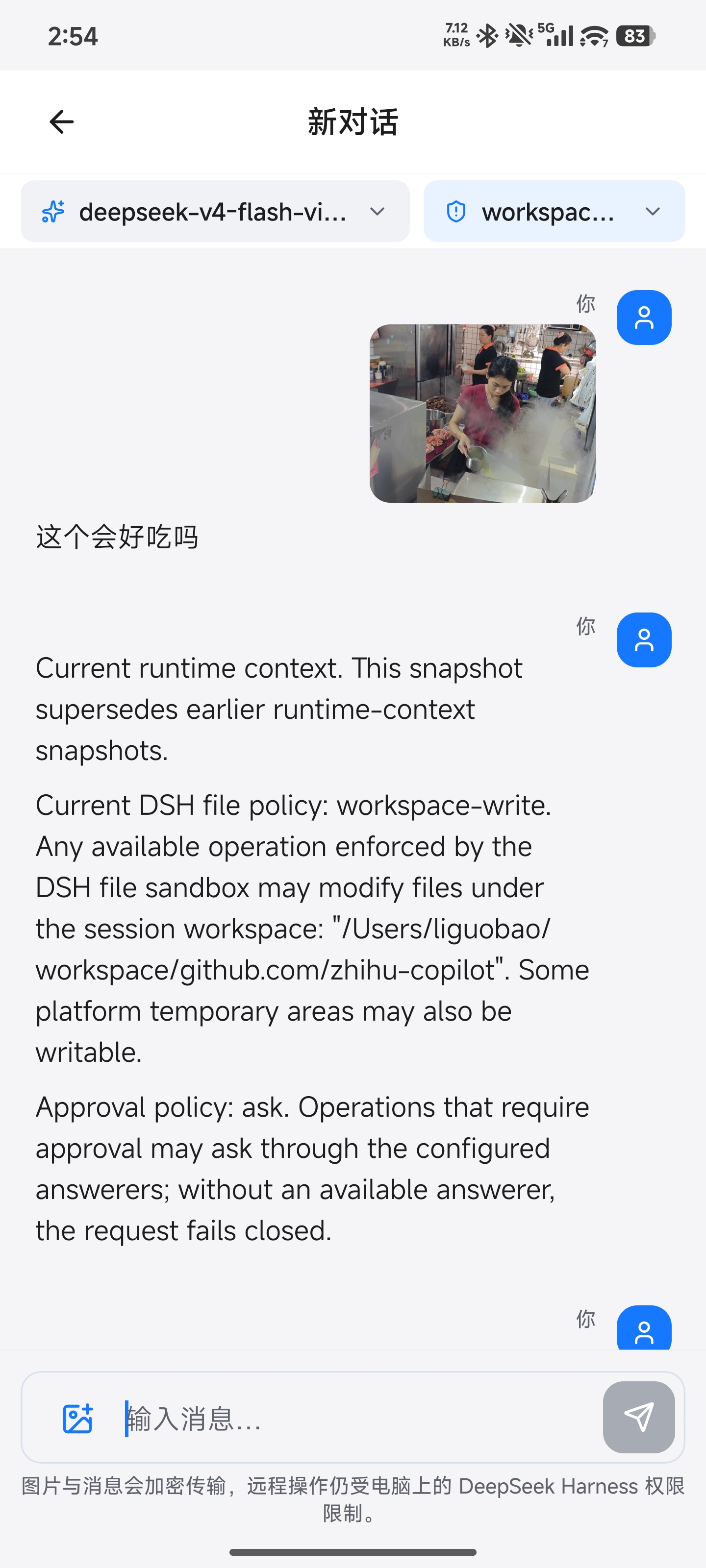
Sign in to the Android client with your existing account, select an available computer, open a workspace, and continue the conversation with text or image prompts. The conversation toolbar also lets you switch the active model and choose any reasoning effort declared by it.
Harness conversations open Files (workspace folders and paged read-only UTF-8 previews) and Terminal from the conversation title bar. These require the native APIs in DSH 0.1.6-alpha.2 or later (including 0.1.7-rc.1 and 0.2.0-rc.2) and an updated Remote Host plugin. Remote terminal access is enabled by default and can be turned off in the Host's detailed Remote settings. The Terminal panel lists the terminals owned by this device and creates a new one only when you tap + in its title bar; opening the panel never creates a terminal. Android restores terminals from the Host snapshot; it never replays input after disconnect. In Files, Back returns from a file to its directory and closes the tool only at the workspace root; refresh also sits in the title bar. These tools are not exposed for CodeX conversations.
The permission selector supports both older inline options and the separate permissionPresets/catalog used by newer DSH 0.1.6 builds. Update the Host Remote plugin too; unsupported Hosts show an actionable error instead of fabricated permission options.
Android Files also previews PNG/JPEG/GIF/WebP images and PDF documents, plus DOC/DOCX/XLS/XLSX/PPT/PPTX when the Host provides officeToPdf. Binary previews are limited to 8 MiB (Office sources: 50 MiB). PDF rendering is bundled locally, with no CDN, external viewer, or file export. Unknown binary types are not treated as text. All access remains read-only and authorized by the official Session filesystem; native-device and cross-device preview validation is still pending.
How it works
DSH Desktop / Remote Web / Android
  ↔ authenticated, end-to-end encrypted channel
Remote Plugin on the Host
  ↔ supported Harness or optional Codex workspace support
Harness sessions/workspaces or Codex projects
The Harness Host does not need a public listening port. You can connect from anywhere with internet access, and Remote communicates over a bidirectional end-to-end encrypted channel. It switches the client to the selected Host's native Harness API, so the original workspace, tools, and permission flow remain on that computer. Every settings namespace currently registered by the Host can also be configured remotely through the official Harness settings API. Credential values remain write-only, and Host-local document/open actions are never exposed.
Experimental Codex workspaces
Remote can also show Codex projects from an authorized Host. Pick one from the normal workspace chooser and continue in the existing Harness or Android interface; there is no separate Codex screen to learn. The Desktop chooser and Android workspace page can also add a Host directory to the Codex project catalog without importing it into Harness storage.
Codex Remote is meant as a convenience layer for your own devices. It supports text prompts, image prompts where available, model and permission controls, interrupt, and approvals. It is still published as experimental while long-running recovery and compatibility work continue.
Web and Desktop approval controls show the Host-confirmed mode for the selected Codex session. If it has not been reported, they indicate that Host settings are inherited. Changing the mode requires Host confirmation; sending a prompt preserves the session's current policy.
Codex is enabled by default and can be turned off in the DeepSeek Remote settings card. Advanced configuration and implementation notes live in Codex Remote technical notes.
End-to-end encryption
Harness business traffic is encrypted on the Client and decrypted only by the selected Host using
the fixed Noise_IK_25519_ChaChaPoly_SHA256 suite. Account membership and locally pinned device
identity keys must both authorize a connection. The service can route connections and observe
network metadata, but it cannot read session messages, prompts, tool output, workspace paths, or
remote file contents. See End-to-end encryption for the handshake,
key lifecycle, visible metadata, replay protection, and security limits.
Network and transport
The Host opens outbound connections only; it does not listen on a public port or require router
port forwarding. Remote negotiates LAN -> P2P -> TURN -> Relay, falling back to the encrypted
WebSocket Relay when WebRTC is unavailable or cannot connect. Every path carries the same Noise
ciphertext and keeps the same Host/Client identity boundary. See Network and transport
for the topology, control and data planes, NAT behavior, fallback, reconnect semantics, and current
validation status.
Security
- Session traffic is end-to-end encrypted. The service relays ciphertext without storing session plaintext or device private keys.
- Server membership and the Host's locally pinned peer identity must both authorize a connection.
- Interactive terminals use the Host-local
terminal.enabledswitch (on by default). They run as the Host user, independently of Agent approvals. General tool RPC and remote desktop remain unavailable. - The workspace picker lists folders only and returns bounded, read-only directory metadata.
- Remote file preview cannot write, delete, upload, execute, or open a path in an external application.
- Codex Remote is optional, can be disabled, and follows the same encrypted Host permission boundary as the rest of Remote.
- Removing a device revokes its credentials, membership, and active Remote connections.
Documentation
- Plugin guide
- dsh-TUI Remote guide
- Codex Remote technical notes
- Documentation index
- End-to-end encryption
- Network and transport
- Remote Protocol
- Development status and roadmap
- Remote compatibility details are maintained in the compatibility guide.
Links
- Friendly link: dsh-TUI — Remote integration is available; see the dsh-TUI Remote guide.
- Friendly link: LINUX DO
- Friendly link: Cyber Liu Kanshan
Star History
Project status and trademarks
This is an independent community project and is not an official DeepSeek product. DeepSeek and related names and marks belong to their respective owners.