
EdgePilot: AI browser automation for Microsoft Edge over MCP
EdgePilot is an MCP server and Microsoft Edge extension that lets AI agents control your browser on Windows: each chat gets a labelled tab-group workspace or its own Edge profile, you can talk to the agent from the Edge side panel, and sign-in goes through the Edge password manager without the agent ever seeing a password.







Project page · Download the latest release · Quick start · MCP tools · FAQ
Contents
- Features
- Quick start
- Workspaces and accounts
- Chat with your agent
- Sign in with Edge's password manager
- On-page indicator
- MCP tools
- Configuration
- How it works
- Privacy and safety
- FAQ
- How EdgePilot compares to other browser MCP servers
- Troubleshooting
- Development
- Contributing, security and support
- License

Features
 Workspaces that stay |
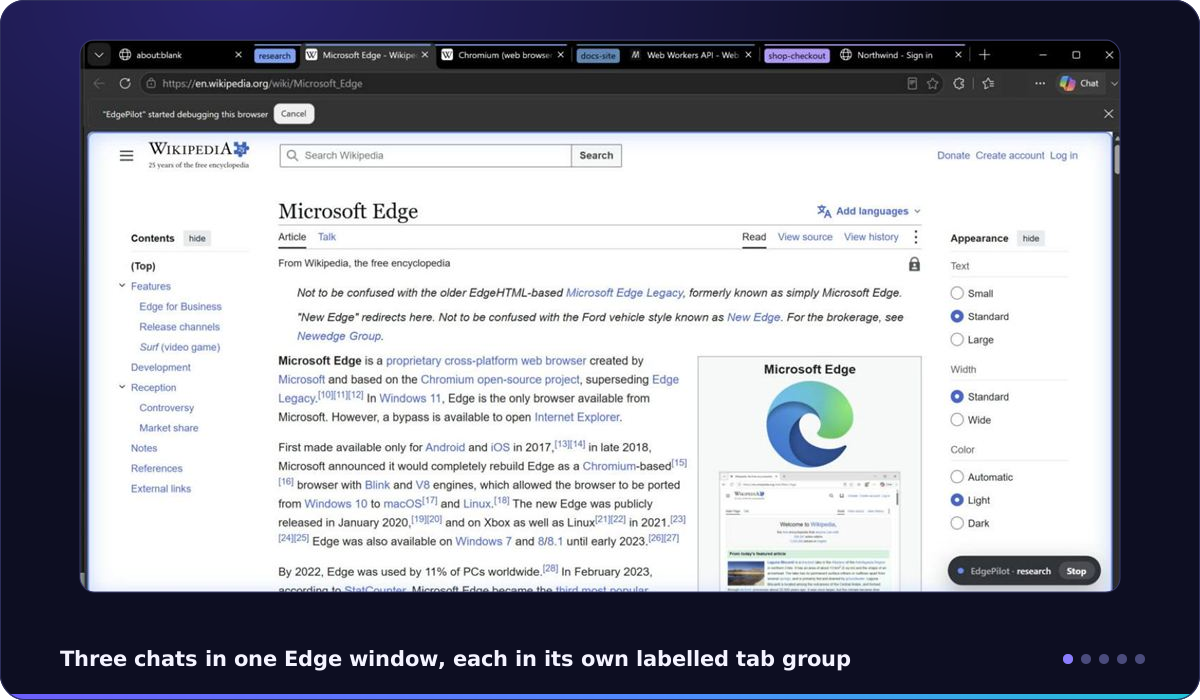
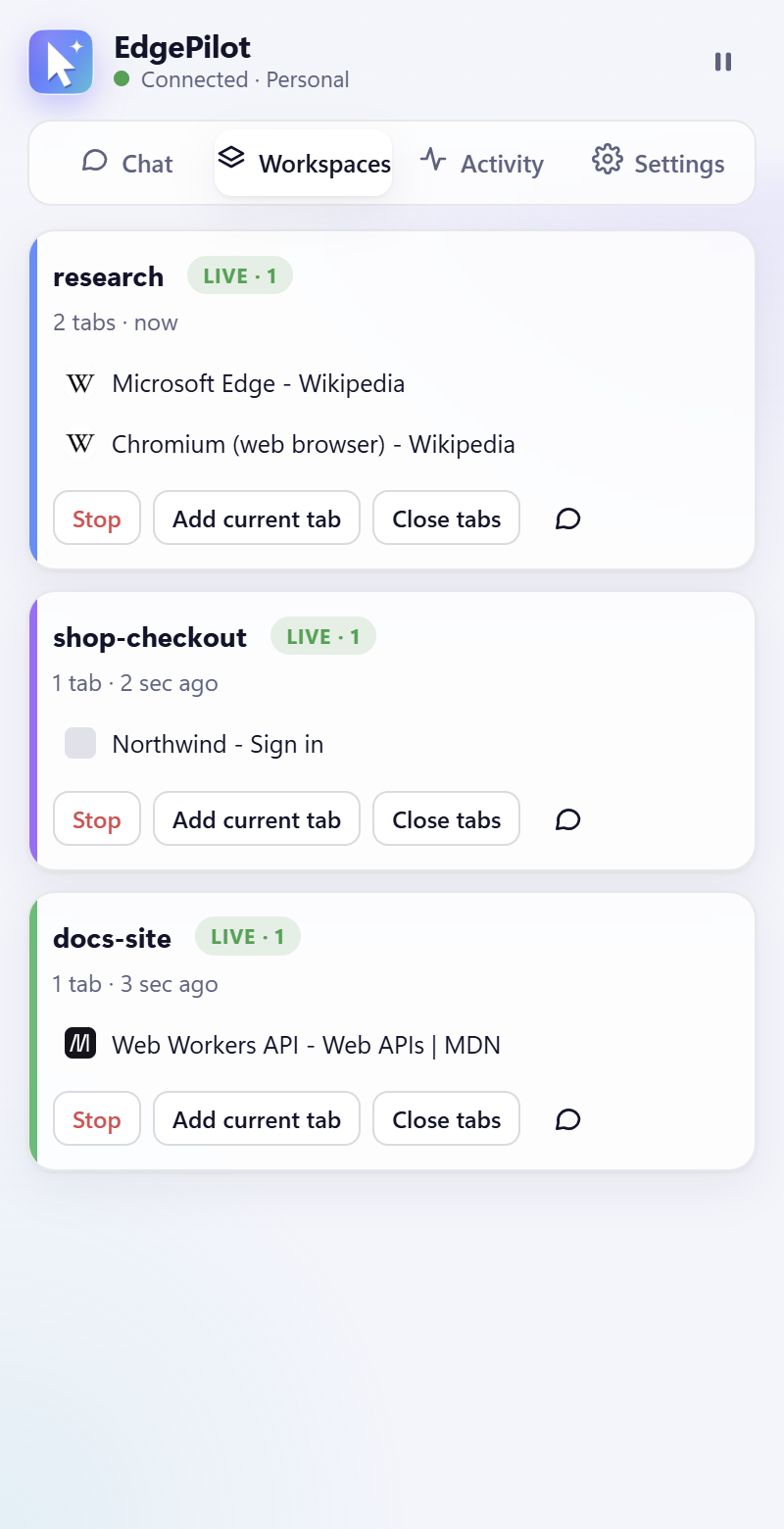
Every chat works in its own Edge tab group, labelled with the chat's name. The label survives Edge restarts, so tomorrow's chat in the same project picks up the same tabs. Rename a group in Edge and the workspace follows. |
 Accounts your way |
Keep every chat in one Edge with your usual sign-ins (labels mode), or give a chat its own separate Edge profile with separate cookies, accounts and history, started automatically. Several chats can share one profile and stay signed in to the same account at the same time. |
 Talk to your agent from Edge |
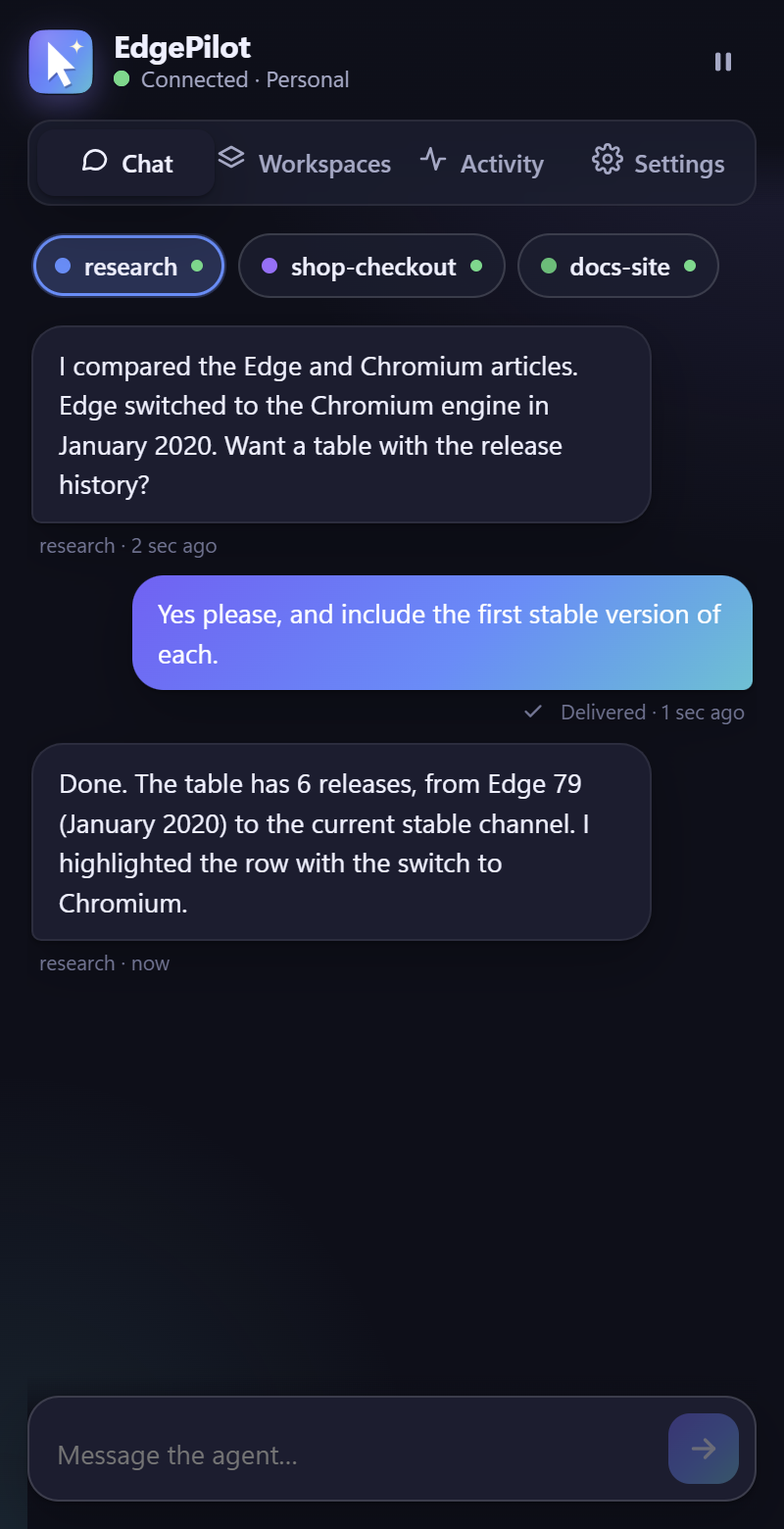
The side panel has a chat per workspace. Messages reach the agent live as channel events (where your client supports them) or with its next action; the agent answers back into the panel and as an Edge notification. |
 Edge passwords, never exposed |
autofill_credentials asks you in an Edge window first; then Edge's own password manager fills the login. Password values are masked in everything the agent can read. |
 You stay in control |
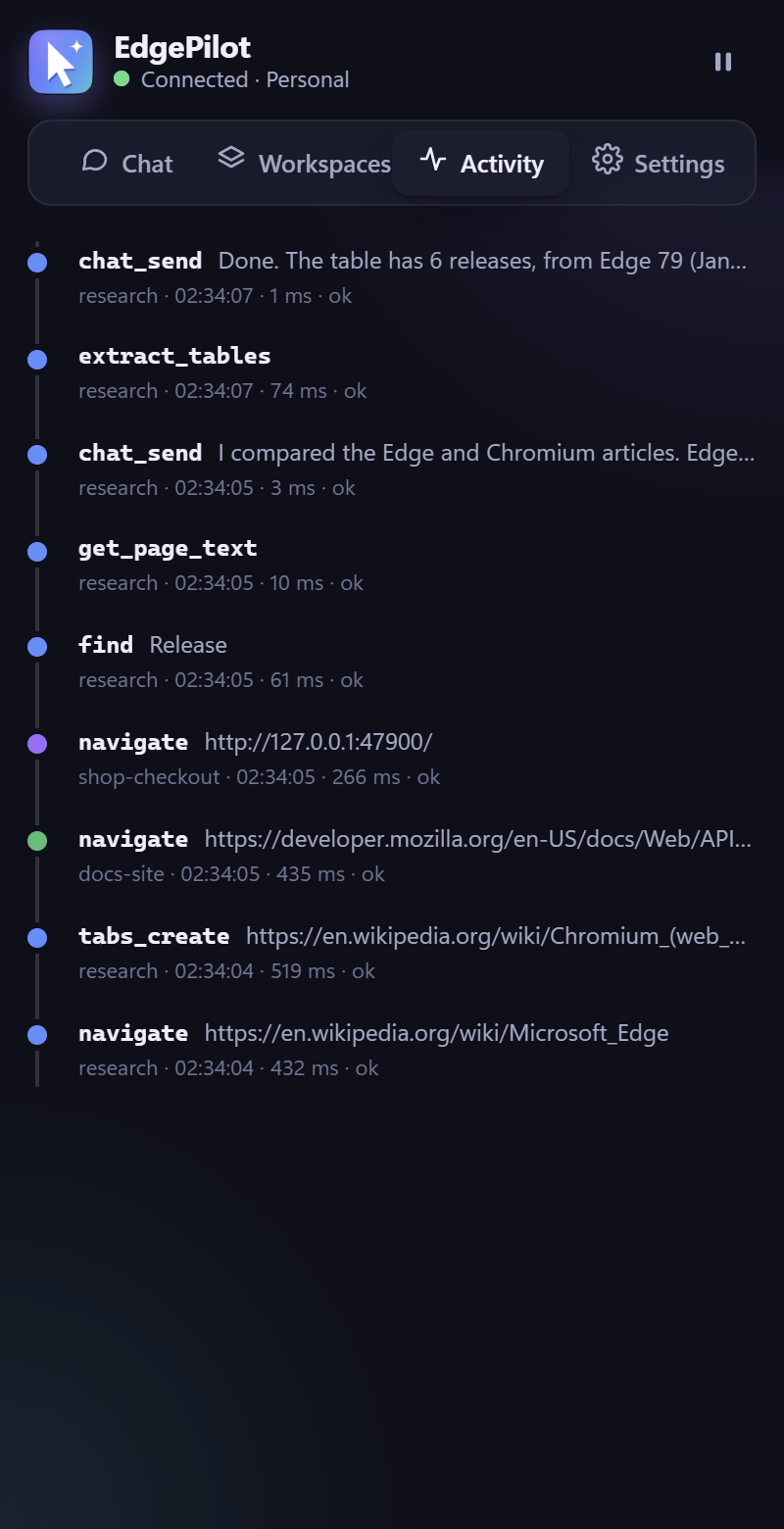
Pause all agents, stop a single workspace, or press Stop on the glowing on-page indicator. Block sites entirely. Every action is in the activity timeline. |
 Light on your PC |
The debugger detaches from idle tabs after 45 s so Edge throttles them normally again; the UI uses short, one-shot animations and honours "reduce motion". |
 38 tools |
Trusted mouse/keyboard input, screenshots (viewport, full page, element), accessibility tree with stable refs, tables and links extraction, console and network capture, device/dark-mode/network emulation, PDF export, dialogs, downloads, favorites, history, and more. |
 Any MCP client |
A standard stdio MCP server (protocol versions 2024-11-05, 2025-03-26 and 2025-06-18) with no npm dependencies, only Node.js 22 or newer. |
 English and Romanian |
The extension interface is localized in English and Romanian. |
Quick start
Requirements: Windows 10/11, Microsoft Edge, Node.js 22 or newer (the installer offers to install it with winget).
1. Get EdgePilot
Either run the one-line installer in PowerShell:
irm https://raw.githubusercontent.com/AndrasBogdanAndrei/EdgePilot/main/install.ps1 | iex
or download EdgePilot-<version>.zip from Releases, unzip it and double-click install.cmd.
The installer registers the bridge for Edge (current user only), connects the MCP clients it finds, copies the extension folder path to your clipboard and waits until Edge connects.
Run the installer yourself, from Explorer or a normal terminal. Some desktop apps run their terminals in a packaged (MSIX) sandbox with a private copy of the registry, and Edge would not see a bridge registered from there.
2. Load the extension in Edge
In every Edge profile you want agents to use:
- Open
edge://extensions - Turn on Developer mode
- Load unpacked → paste the path (Ctrl+V) → Select folder
Separate-profile mode needs nothing else: EdgePilot starts those profiles with the extension already loaded.
3. Connect your MCP client
The installer adds EdgePilot to the Claude Code CLI automatically when it finds it. For other clients (Cursor, VS Code, Windsurf, …) add a stdio server:
{
  "mcpServers": {
    "edgepilot": {
      "command": "node",
      "args": ["C:\\Users\\you\\EdgePilot\\mcp\\server.js"]
    }
  }
}
Start a new chat and ask it to use Edge.
To remove EdgePilot later, run uninstall.cmd and remove the extension in edge://extensions. Settings and separate profiles stay in %USERPROFILE%\.edgepilot unless you run uninstall.cmd --purge.
Workspaces and accounts
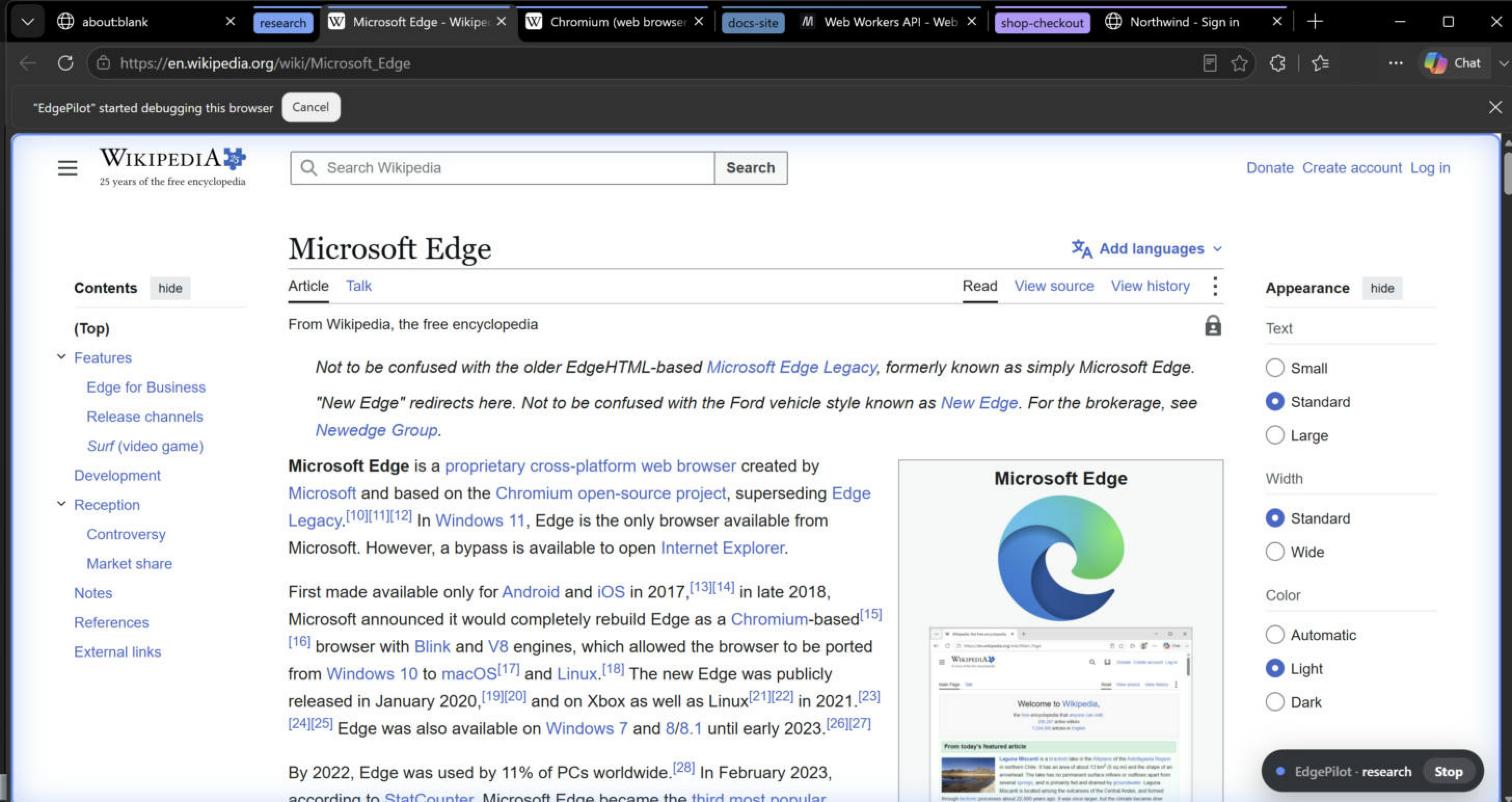
Three chats in one Edge window: research, docs-site and shop-checkout each own a labelled tab group. The pill at the bottom right shows which chat is using the page.
| You want | Do this |
|---|---|
| Every chat in your normal Edge, each in its own labelled tab group | Default (labels mode). The label is the project folder name; a second chat in the same folder gets name 2. |
| A specific label | EDGEPILOT_LABEL=client-x in the MCP server environment, or ask the agent to call workspace with use {name}. |
| A chat with its own cookies and accounts | Set New chats → Separate profile in the panel's settings, or EDGEPILOT_MODE=profile, or workspace use {name, mode: "profile"}. The profile lives in %USERPROFILE%\.edgepilot\profiles\<name> and keeps its sign-ins for next time. |
| The same account in several chats at once | Use labels mode on one Edge profile. All chats share its sign-ins. |
| A different regular Edge profile (e.g. Work) | Load the extension there, then select_browser or launch_edge_profile, or set EDGEPILOT_PROFILE=Work. |
| A throwaway, signed-out context | tabs_create with inprivate: true (enable Allow in InPrivate for EdgePilot). |
Chat with your agent
Open the panel (click the EdgePilot icon or press Alt+Shift+E), pick a workspace and write.
- Live delivery. EdgePilot declares the
claude/channelcapability, so clients that support MCP channel events receive your message immediately as a<channel source="edgepilot" workspace="…" message_id="…">event. In Claude Code this is a research preview and is enabled per session with:claude --dangerously-load-development-channels server:edgepilot - Always works. Messages the agent has not seen yet are attached to its next tool result, and it can call
chat_read. - Replies. The agent answers with
chat_send; you see it in the panel and as an Edge notification.
Sign in with Edge's password manager
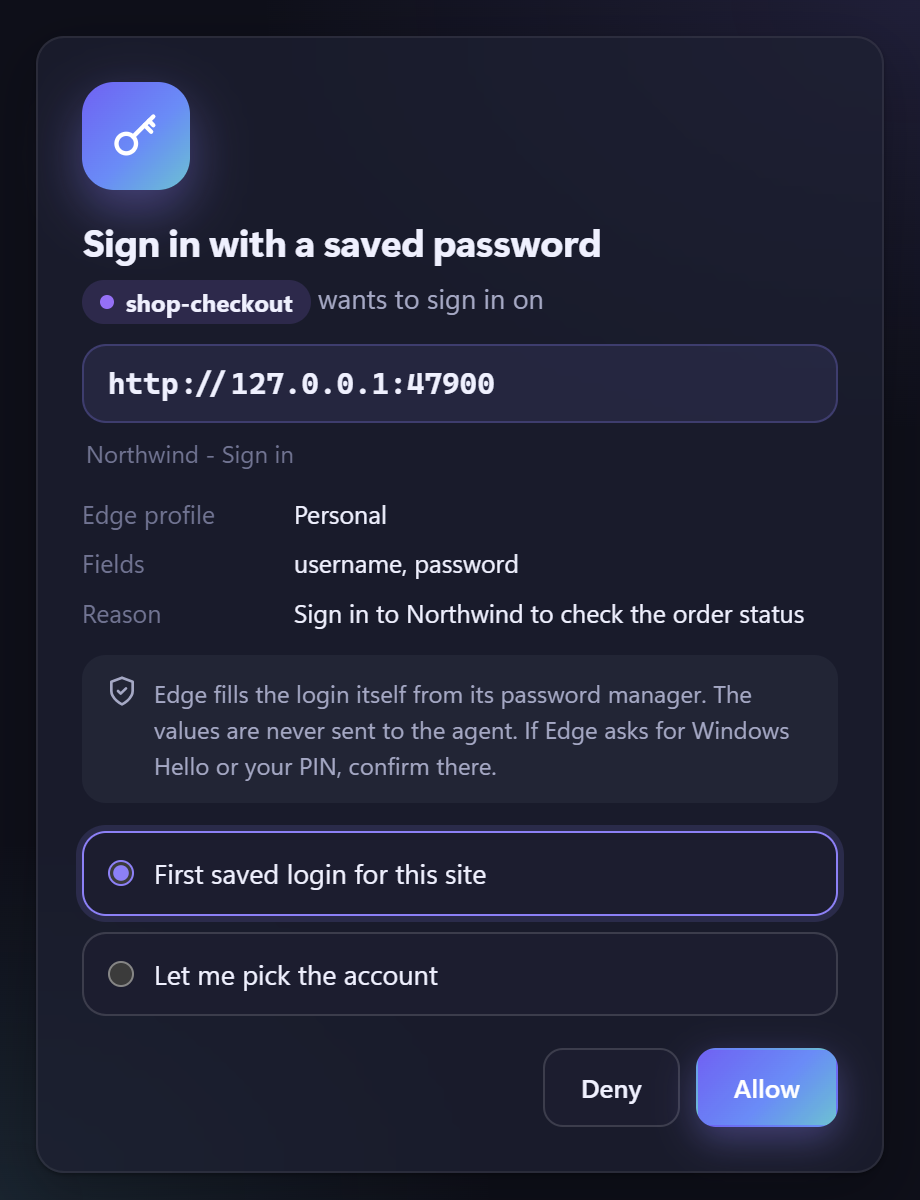
- The agent calls
autofill_credentials. EdgePilot finds the username and password fields. - You approve in an Edge window the agent cannot click, choosing the first saved login or picking the account yourself.
- Edge fills the fields from its password manager. If Edge asks for Windows Hello or your PIN, you confirm there.
- The agent only learns that the fields were filled. Password values are masked in
read_page,javascript_tool, console, network and storage output.
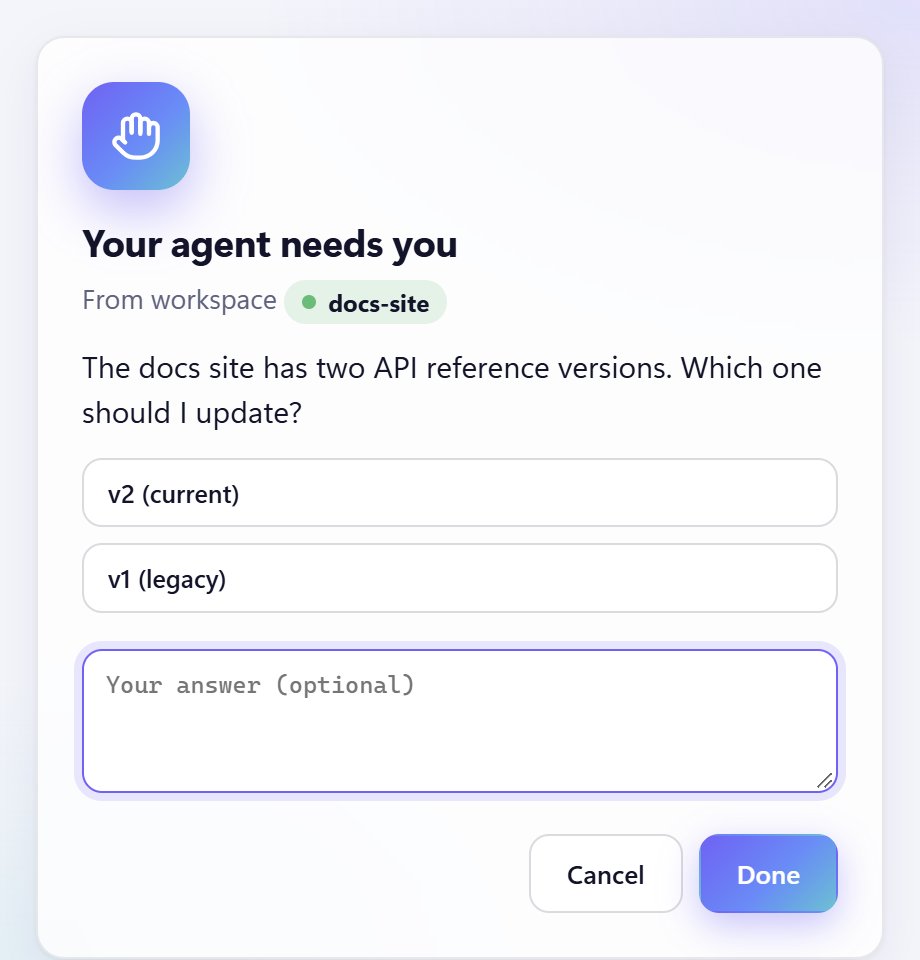
For CAPTCHAs, 2FA codes or decisions, the agent uses ask_user, which shows a question with buttons and/or a text box.
On-page indicator
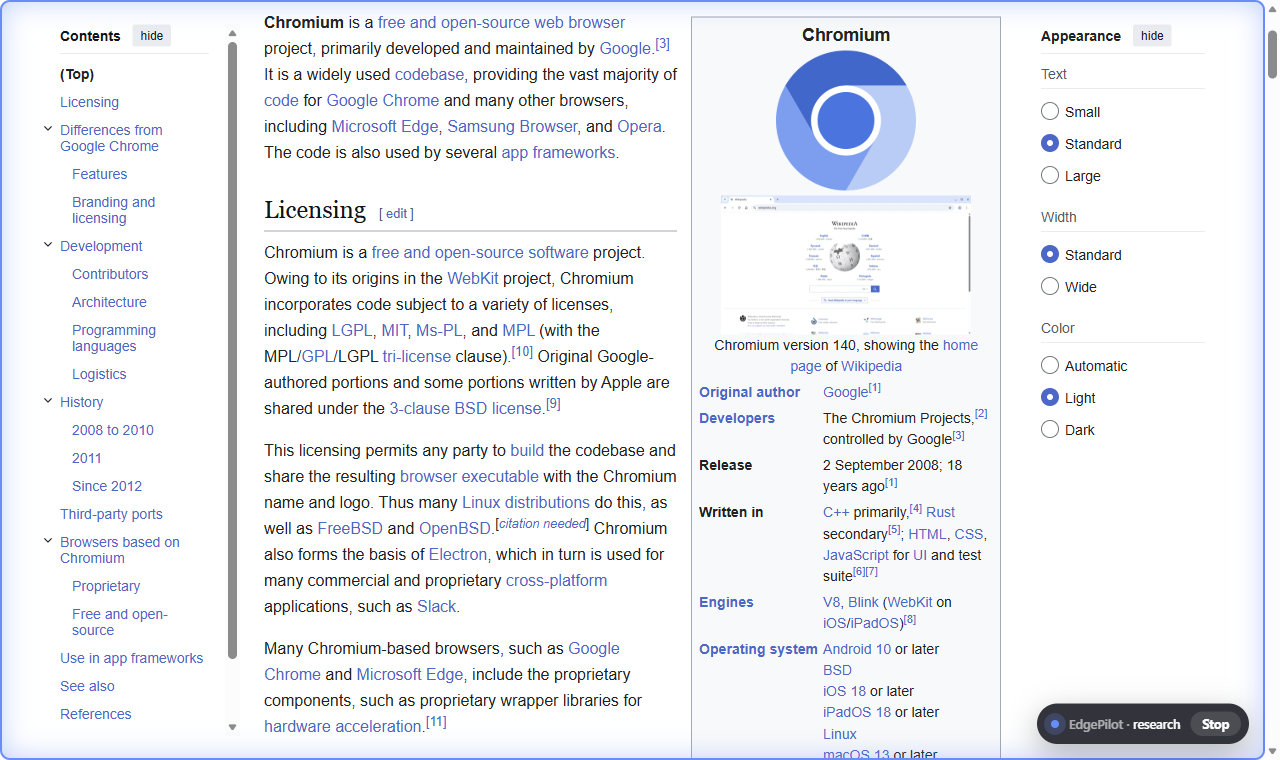
While an agent acts on a page, a soft glow in the workspace's color and a pill with a Stop button appear for a few seconds, then disappear completely.
MCP tools
EdgePilot exposes 38 MCP tools (defined in mcp/tools.js):
| Area | Tools |
|---|---|
| Workspaces & browsers | workspace, list_connected_browsers, select_browser, list_edge_profiles, launch_edge_profile, browser_batch |
| Tabs & navigation | tabs_context, tabs_create, tabs_select, tabs_close, navigate |
| Input & vision | computer (clicks, typing, keys, drag, scroll, screenshot, full-page/element screenshot, zoom, wait), highlight |
| Reading | read_page, find, get_page_text, get_links, extract_tables |
| Forms & scripting | form_input, javascript_tool, page_storage, file_upload, wait_for, handle_dialog |
| Debugging & testing | read_console_messages, read_network_requests, block_urls, emulate, performance_metrics, resize_window, save_pdf |
| Edge features | autofill_credentials, downloads, bookmarks, history_search |
| Talking to you | ask_user, chat_send, chat_read |
What each tool does
| Tool | Description |
|---|---|
workspace |
This chat's workspace: info, list, use {name, mode}, rename, close tabs. mode is labels (tab group in a shared profile) or profile (its own Edge profile). |
list_connected_browsers |
Edge profiles that have EdgePilot connected, and which one this chat uses. |
select_browser |
Choose which connected Edge profile this chat drives. |
list_edge_profiles |
Every regular Edge profile on the computer plus EdgePilot's per-chat profiles, with connection state. |
launch_edge_profile |
Open a regular Edge profile, wait for EdgePilot to connect there and select it. |
browser_batch |
Run several tool calls in sequence in one round trip; stops on the first error. |
tabs_context |
List the tabs of this workspace (optionally open one if there is none). |
tabs_create |
Open a tab in this workspace, optionally in an InPrivate window. |
tabs_select / tabs_close |
Make a tab current and show it / close a tab of this workspace. |
navigate |
Go to a URL, or back, forward, reload (optionally bypassing the cache). Waits for the load. |
computer |
Trusted mouse and keyboard input and screenshots: clicks, hover, drag, type, key chords, scroll, zoom, wait, full-page and element screenshots. |
highlight |
Highlight an element for a few seconds to point something out. |
read_page |
Accessibility-style tree with [ref_N] ids for interactive elements. Password values are never shown. |
find |
Find up to 20 elements by role, name or text. |
get_page_text |
Visible text of the page, main or article content first. |
get_links |
Visible links (text, URL, ref), optionally filtered. |
extract_tables |
HTML tables as Markdown. |
form_input |
Set an input, textarea, select, checkbox, radio or contenteditable by ref. |
javascript_tool |
Run JavaScript in the page; top-level await works. Password values are masked. |
page_storage |
Read or change localStorage / sessionStorage of the page's origin. |
file_upload |
Put local files into a file input. |
wait_for |
Wait for text, a visible selector, a URL substring and/or network idle (or for them to disappear). |
handle_dialog |
Accept or dismiss alert, confirm, prompt and beforeunload dialogs. |
read_console_messages |
Console output and uncaught exceptions of a tab. |
read_network_requests |
Network requests of a tab, or one response body. |
block_urls |
Block requests that match URL patterns, such as ads or analytics. |
emulate |
Emulate a device size, dark or light color scheme, network speed or offline, geolocation, timezone or locale. |
performance_metrics |
Load timing (TTFB, FCP, LCP, CLS), resource counts and runtime metrics. |
resize_window |
Resize the window of a tab. |
save_pdf |
Save the page as a PDF file. |
autofill_credentials |
Sign in with a login saved in the Edge password manager, after your approval. The values never reach the agent. |
downloads |
List recent downloads, start one or wait for one. |
bookmarks |
Search, list or add Edge favorites. |
history_search |
Search the Edge browsing history of this profile. |
ask_user |
Ask you something in an Edge popup (buttons and/or free text) and wait for the answer. |
chat_send / chat_read |
Send a message to the side panel chat of this workspace / read new messages you wrote there. |
Configuration
Set these in the environment of the MCP server (for example in your MCP client's server config) when you need them:
| Variable | Effect |
|---|---|
EDGEPILOT_LABEL |
Workspace label for this chat. Default: the name of the current folder. |
EDGEPILOT_MODE |
labels (default) or profile for a separate Edge profile per chat. |
EDGEPILOT_PROFILE |
Which connected Edge profile to use when several are connected (name, folder or account). |
EDGEPILOT_HOME |
EdgePilot's data folder. Default: %USERPROFILE%\.edgepilot. |
EDGEPILOT_EDGE_USER_DATA |
Edge's user data folder, used to list your Edge profiles. Default: %LOCALAPPDATA%\Microsoft\Edge\User Data. |
The default mode for new chats can also be set in the side panel under Settings → New chats.
How it works

The same diagram as text
flowchart LR
  A1[Chat 1] -- stdio --> M1[MCP server]
  A2[Chat 2] -- stdio --> M2[MCP server]
  M1 -- named pipe + token --> B[Bridge<br/>one per Edge profile]
  M2 -- named pipe + token --> B
  B -- native messaging --> E[EdgePilot extension]
  E -- DevTools protocol<br/>scripting, tabs --> T[Tabs in labelled<br/>tab groups]
  P[Side panel chat] --> E
- Each chat starts its own MCP server (
mcp/server.js); each Edge profile with the extension starts its own bridge (bridge/host.js, registered as the native messaging hostcom.edgepilot.bridge). - The extension (
extension/) is a Manifest V3 extension that uses thechrome.debugger(DevTools protocol),scripting,tabsandtabGroupsAPIs. - Bridges listen on a local named pipe protected by a random token stored in
%USERPROFILE%\.edgepilot. No network ports are opened. The only exception: when a separate profile is created, a local DevTools port is open for a few seconds to turn on developer mode in that profile, then closed with that browser. - Nothing leaves your computer except the pages you visit.
Privacy and safety
- Password values are never returned to the agent. Approvals and questions appear in Edge windows the agent cannot click.
- Blocked sites cannot be read or controlled, including their subdomains and history entries.
- Pause stops all agents; Stop stops one workspace; Edge's "is being debugged" bar shows which tabs are attached.
- Internal pages (
edge://, the add-ons store, the PDF viewer) cannot be controlled. - EdgePilot itself sends nothing to a server, but page content the agent reads is passed to your MCP client, which sends it to the AI model it uses. Block sites you never want an agent to see.
FAQ
How do I let an AI agent control Microsoft Edge?
Install EdgePilot (run install.cmd or the one-line PowerShell installer), load the extension folder in edge://extensions with Developer mode → Load unpacked, and add EdgePilot to your MCP client as a stdio server. Then start a new chat and ask the agent to use Edge. It opens its own labelled tab group and works there.
Which AI agents and MCP clients work with EdgePilot?
Any client that can start a local stdio MCP server, for example Cursor, VS Code, Windsurf or a command-line coding agent. EdgePilot answers MCP protocol versions 2024-11-05, 2025-03-26 and 2025-06-18.
Does the AI agent see my passwords?
No. autofill_credentials asks for your approval in an Edge window the agent cannot click, and then Edge's own password manager fills the fields. The agent only learns that the fields were filled. Password values are masked in page reads, scripts, console, network and storage output.
Can each AI chat use a different Edge profile or account?
Yes. In profile mode every chat gets its own Edge profile with separate cookies, accounts and history, stored under %USERPROFILE%\.edgepilot\profiles\<name>. In labels mode chats share one Edge profile and its sign-ins, each in its own tab group. You can also point a chat at one of your regular Edge profiles with select_browser or launch_edge_profile.
Do workspaces survive an Edge restart?
Yes. A workspace is a labelled Edge tab group, and the label stays in Edge after restarts. The next chat with the same label picks up the same tabs.
How do I stop an agent?
Press Stop on the on-page indicator, stop one workspace in the side panel, or Pause all agents. You can also block sites in Settings → Blocked sites so agents cannot read or control them.
Does EdgePilot work with Google Chrome, macOS or Linux?
No. EdgePilot is built for Microsoft Edge on Windows 10 and 11: the installer registers the bridge in Edge's native messaging registry key and the bridge uses Windows named pipes.
Does EdgePilot send my data anywhere?
EdgePilot opens no network ports and talks to the MCP server over a local named pipe protected by a token. What the agent reads from a page goes to your MCP client and the AI model it uses, as with any browser tool for agents.
Is EdgePilot free?
It is free for any noncommercial use under the PolyForm Noncommercial License 1.0.0. For commercial use, open an issue to ask for a license.
How EdgePilot compares to other browser MCP servers
There are several ways to give an AI agent a browser. General-purpose projects such as Playwright MCP and Chrome DevTools MCP are cross-platform MCP servers built on Playwright or the Chrome DevTools Protocol, and are a good fit for testing and scripted automation; see their documentation for their current features.
EdgePilot is narrower and focuses on using your everyday Microsoft Edge on Windows:
| EdgePilot | |
|---|---|
| Browser | Microsoft Edge only, through an Edge extension and a native messaging bridge |
| Platform | Windows 10 and 11 |
| Where the agent works | In your own Edge profiles, in a labelled tab group per chat, or in a separate Edge profile per chat |
| Several chats at once | Yes, each in its own workspace, with a pill on the page showing which chat is using it |
| Sign-in | Approved autofill from the Edge password manager; password values are masked from the agent |
| Talking to the agent | Side panel chat per workspace, ask_user popups, Edge notifications |
| License | PolyForm Noncommercial 1.0.0 |
Troubleshooting
| Problem | Fix |
|---|---|
Panel says Offline or native messaging host not found |
Run install.cmd yourself (double-click), then reload the extension. |
| A chat says Several Edge profiles are connected | Call select_browser, or set EDGEPILOT_PROFILE. |
| Screenshots time out | The window is minimized. EdgePilot brings covered windows forward, but not minimized ones. |
file_upload fails |
Enable Allow access to file URLs for EdgePilot in edge://extensions. |
| A separate profile does not connect | EdgePilot repairs it automatically once; if it still fails, delete %USERPROFILE%\.edgepilot\profiles\<name>. |
Development
node installer/install.js --no-mcp   # register the bridge only
node test/e2e.js                     # 63 checks against a running Edge with EdgePilot
node installer/package.js            # build dist/*.zip
Run the tests against a throwaway profile:
msedge --user-data-dir=%TEMP%\edgepilot-test --load-extension=<repo>\extension --disable-sync --no-first-run
Without --disable-sync, a new Edge profile signs in with your Windows Microsoft account and syncs your real passwords.
Project layout:
| Folder | Contents |
|---|---|
extension/ |
The Manifest V3 Edge extension: service worker, side panel, approval and question windows, page agent |
bridge/ |
Native messaging host that connects Edge to the MCP servers |
mcp/ |
The stdio MCP server and its tool definitions |
shared/ |
Paths, names and instance discovery shared by all parts |
installer/ |
Install, uninstall, icon and release packaging scripts |
test/ |
End-to-end tests |
Contributing, security and support
- Contributing guide: how to report bugs, propose changes and test safely.
- Security policy: how to report a vulnerability privately.
- Support: where to ask for help.
- Code of conduct.
If EdgePilot is useful to you, a star on GitHub helps other people find it.
License
EdgePilot is © 2026 Andras Bogdan Andrei and licensed under the PolyForm Noncommercial License 1.0.0. You may use, study and modify it for any noncommercial purpose. For commercial use, open an issue to ask for a license.
Microsoft Edge is a trademark of Microsoft Corporation. EdgePilot is an independent project and is not affiliated with or endorsed by Microsoft or any AI vendor.
Pe scurt, în română
EdgePilot lasă agenții AI să controleze Microsoft Edge prin MCP. Fiecare chat are un grup de tab-uri etichetat, care rămâne permanent în Edge. Opțional, fiecare chat poate primi un profil Edge separat, cu conturi separate. Din panoul lateral poți vorbi cu agentul. Autentificarea folosește managerul de parole Edge, cu aprobarea ta, iar parola nu ajunge niciodată la agent. Instalare: rulează install.cmd, apoi încarcă folderul extension din edge://extensions (Modul dezvoltator → Încărcare despachetată).